Tag Archives: Device Drivers

💻 Windows / Linux / macOS Basics


🌐 Introduction to Operating Systems
Image
Image
Image
Image

An Operating System (OS) is the most important system software that manages hardware resources and provides an interface between the user and the computer.

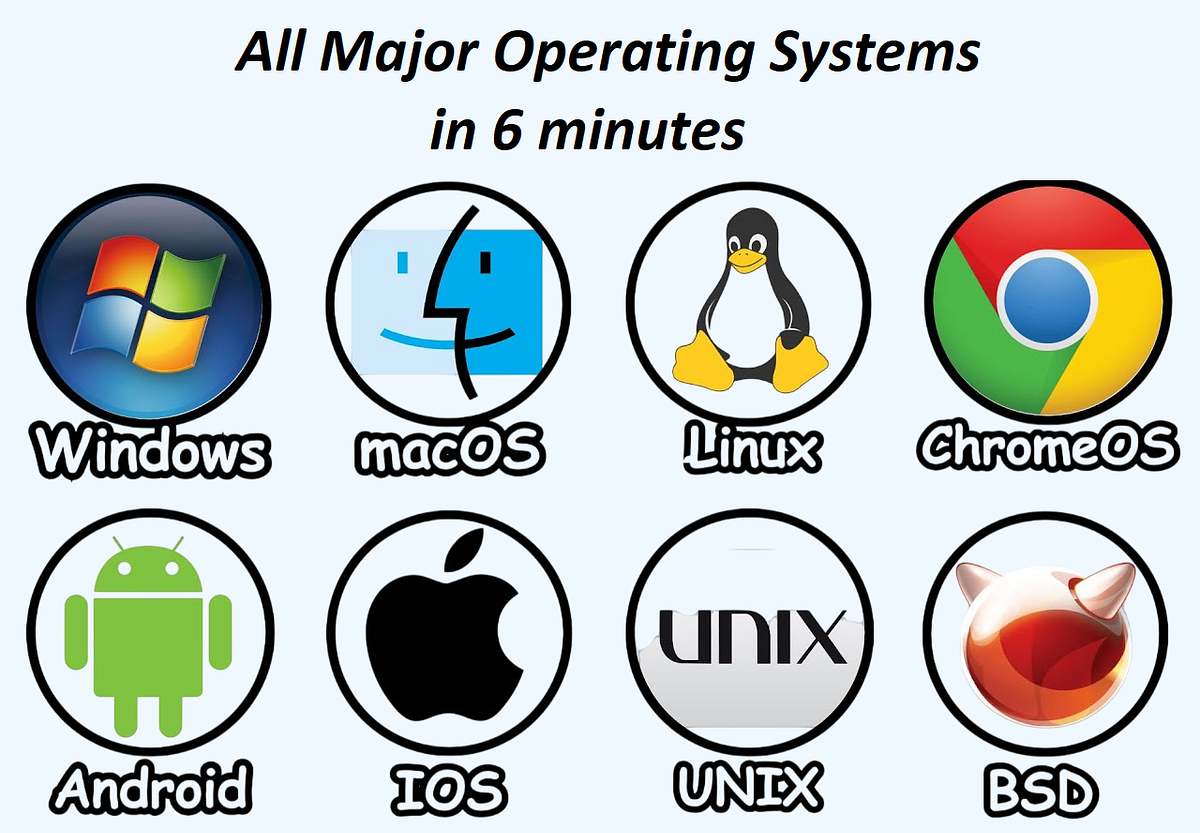
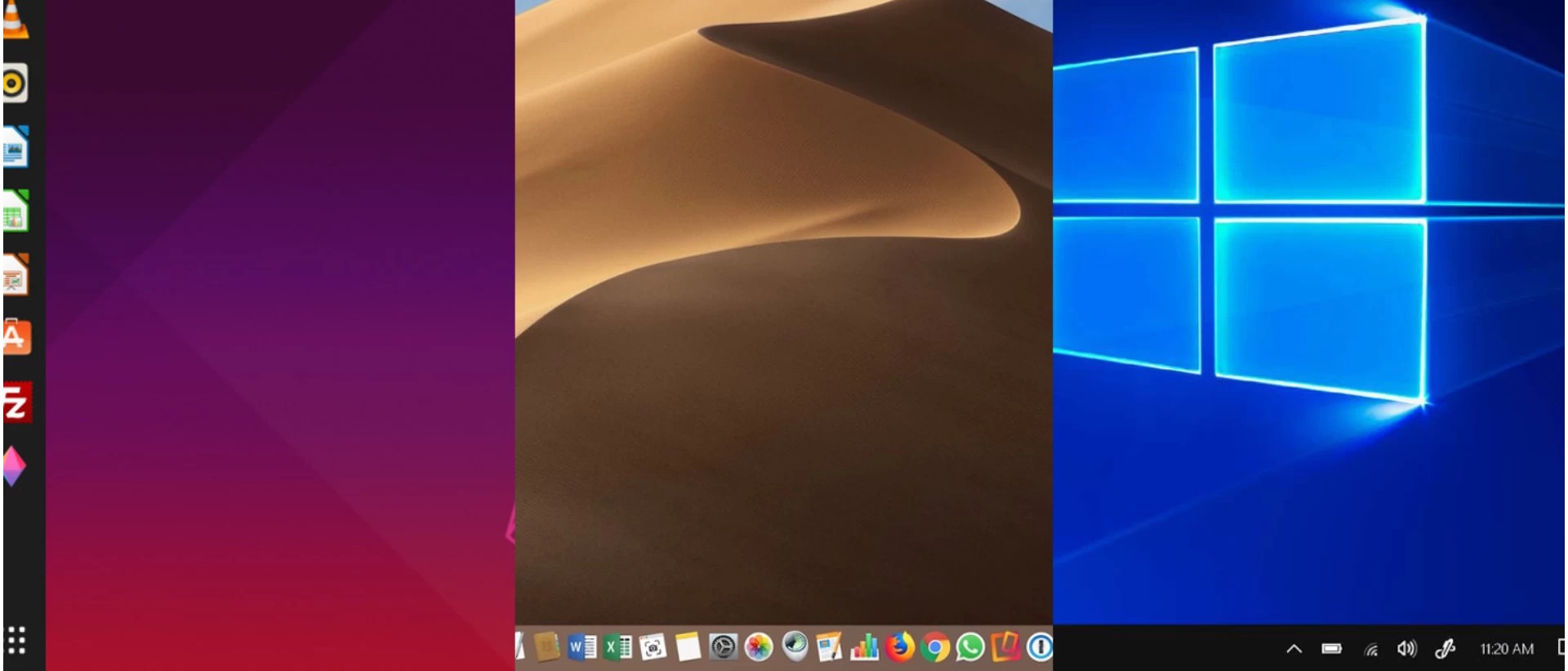
The three most widely used operating systems are:

  • Windows
  • Linux
  • macOS

Each has unique features, design philosophies, and use cases, but all share common responsibilities:

  • Process management
  • Memory management
  • File system control
  • Device management
  • Security

🪟 WINDOWS OPERATING SYSTEM


🧠 Overview of Windows
Image
Image
Image
Image

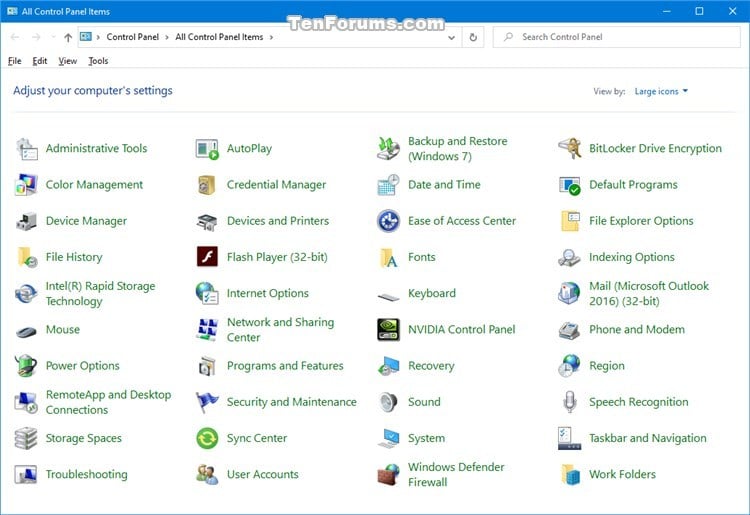
Windows is a widely used operating system developed by Microsoft. It is known for its user-friendly interface and broad compatibility.


⚙️ Key Features of Windows

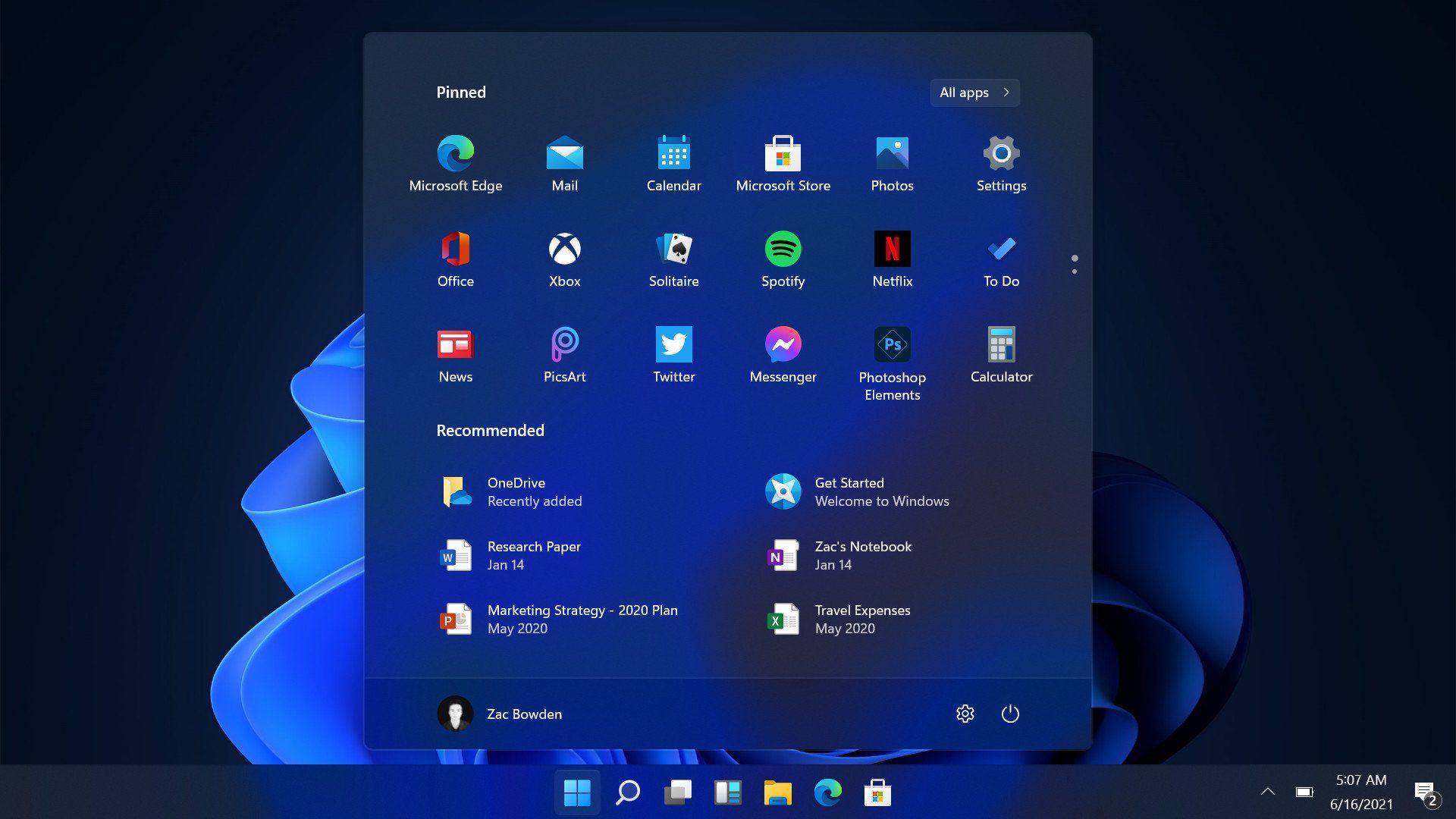
🖥️ Graphical User Interface (GUI)

  • Start menu
  • Taskbar
  • Desktop icons

📂 File Management

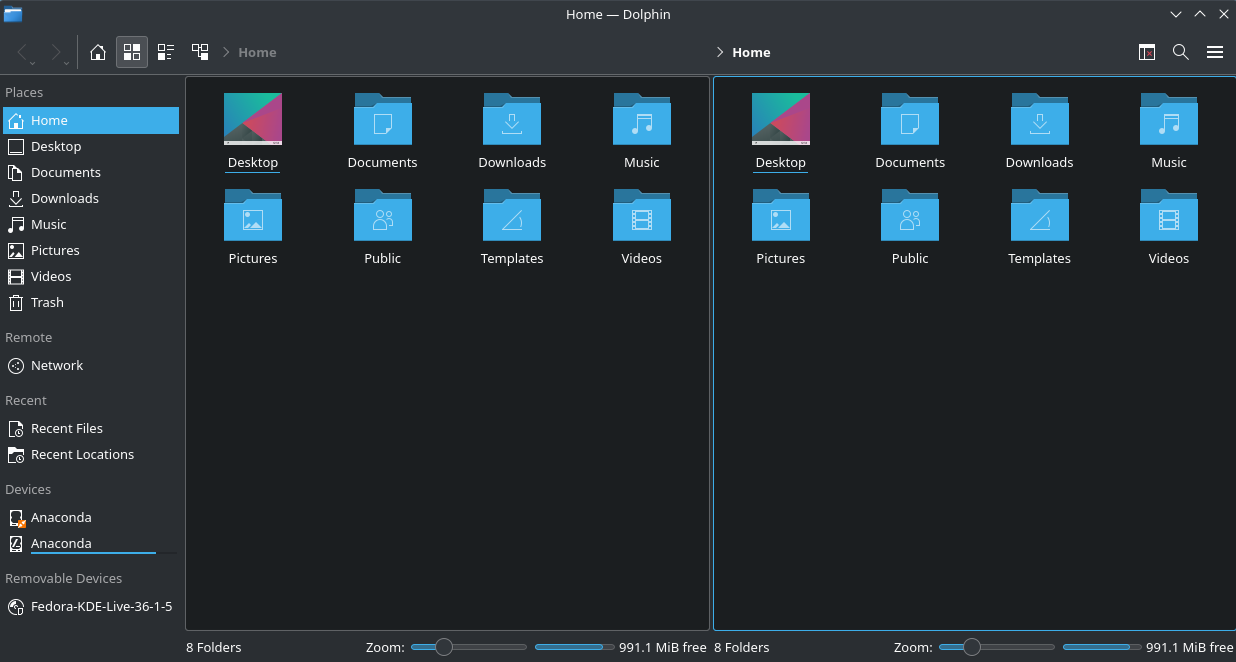
  • File Explorer
  • Folder organization

🔄 Multitasking

  • Run multiple applications simultaneously

🔌 Hardware Compatibility

  • Supports a wide range of devices

🧩 Windows Components

  • Kernel
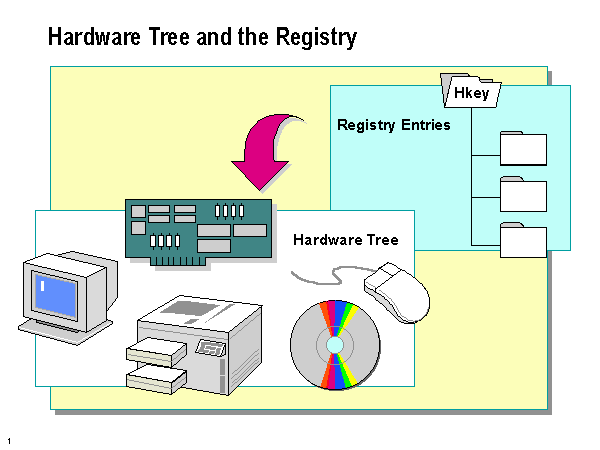
  • Device drivers
  • System libraries
  • User interface

🔐 Security Features

  • Windows Defender
  • Firewall
  • User account control

📁 File System

  • NTFS (New Technology File System)

⚡ Advantages

  • Easy to use
  • Large software ecosystem
  • Strong hardware support

⚠️ Limitations

  • Paid license
  • Vulnerable to malware
  • Resource-intensive

🐧 LINUX OPERATING SYSTEM


🧠 Overview of Linux
Image
Image
Image
Image

Linux is an open-source operating system based on Unix principles. It is widely used in servers, embedded systems, and development environments.


⚙️ Key Features of Linux

🔓 Open Source

  • Free to use and modify

🧠 Multiuser & Multitasking

  • Supports multiple users simultaneously

⚡ Stability and Performance

  • Efficient resource usage

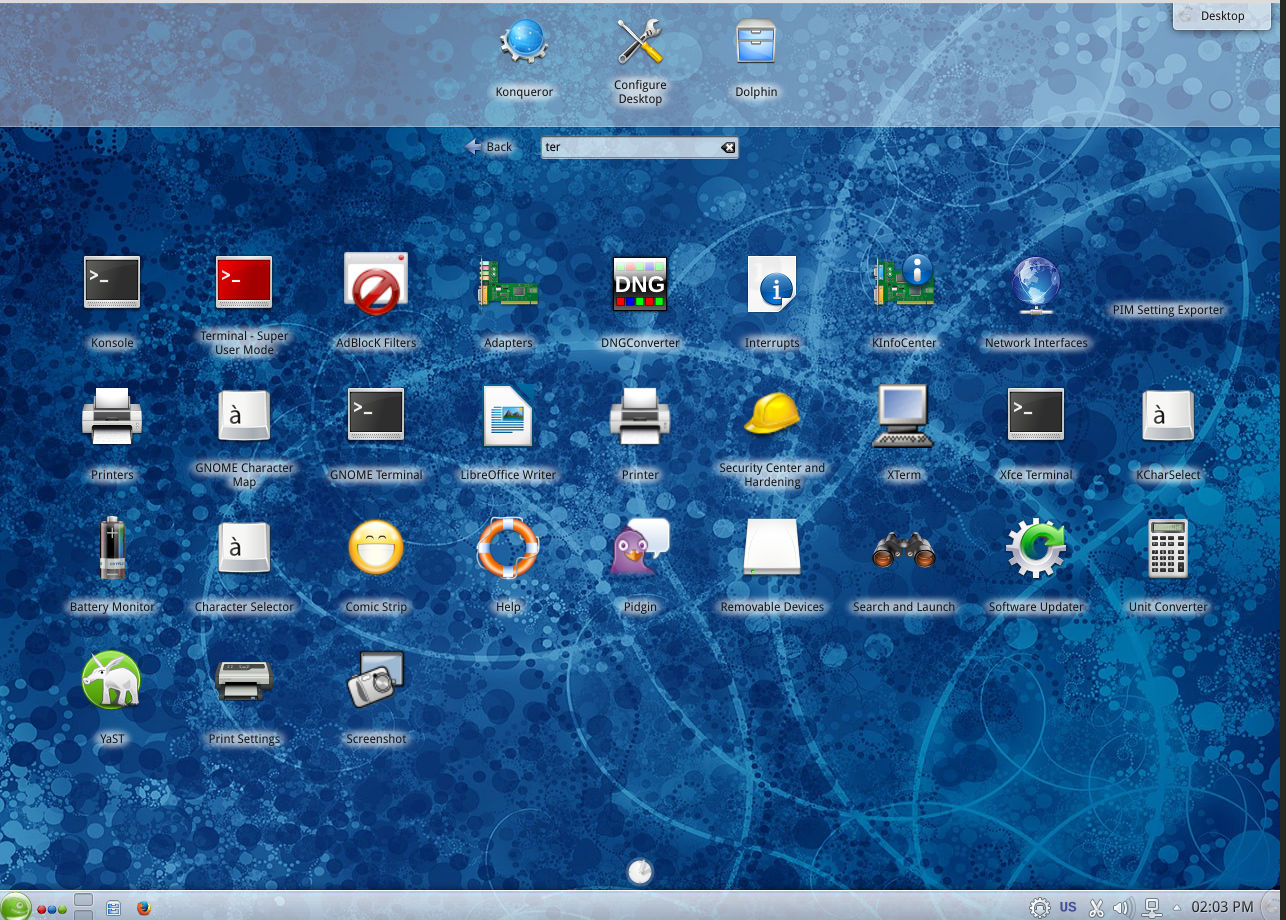
🖥️ Command Line Interface

  • Powerful terminal (Bash shell)

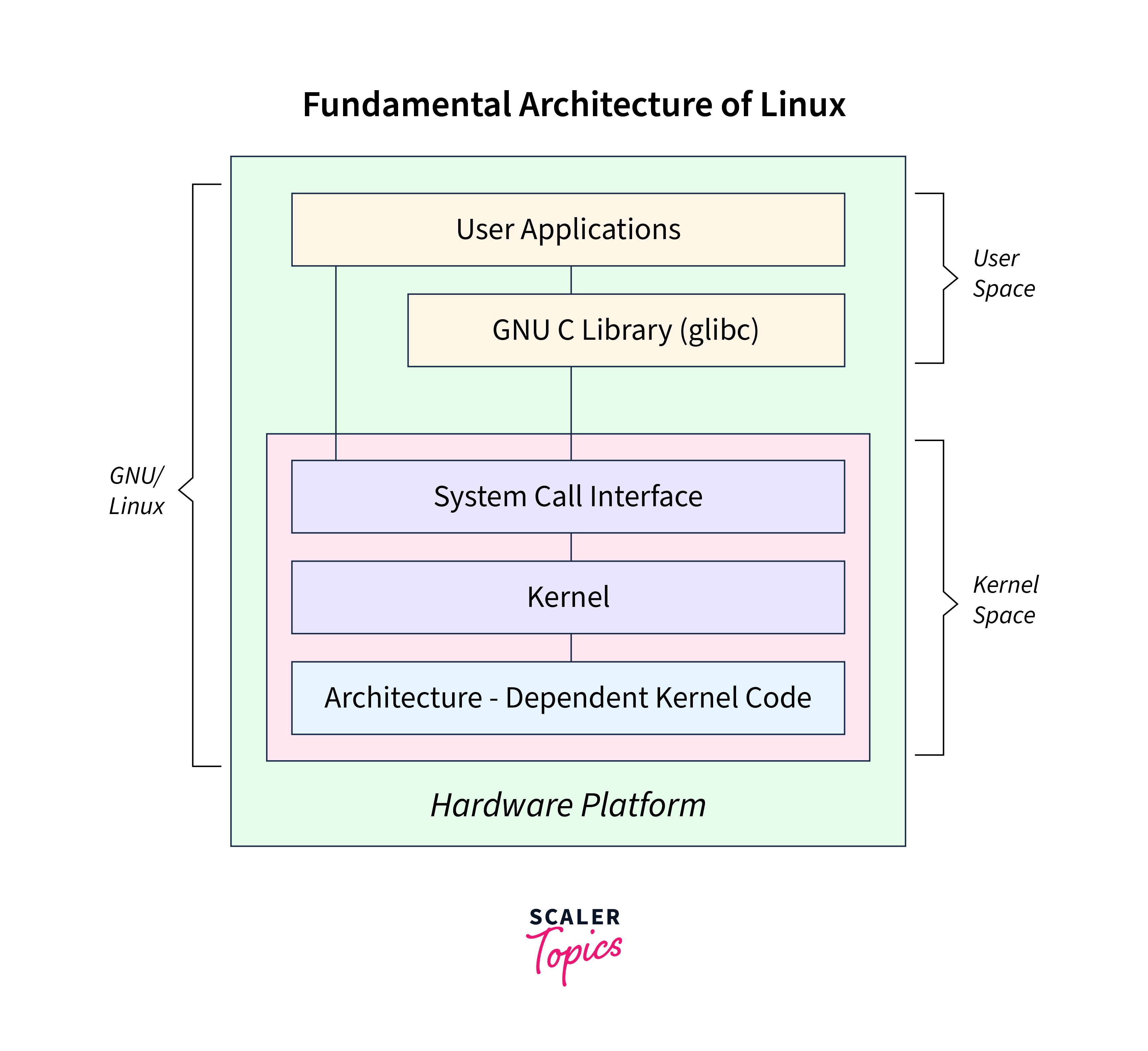
🧩 Linux Components

  • Kernel
  • Shell
  • File system
  • Utilities

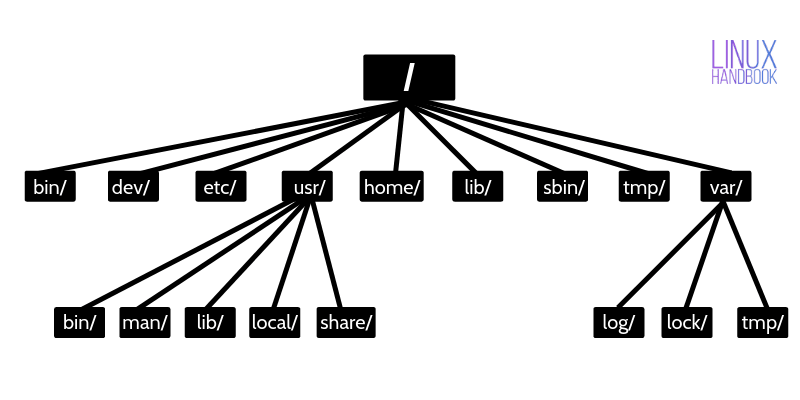
📁 Linux File System

Image
Image
Image
Image
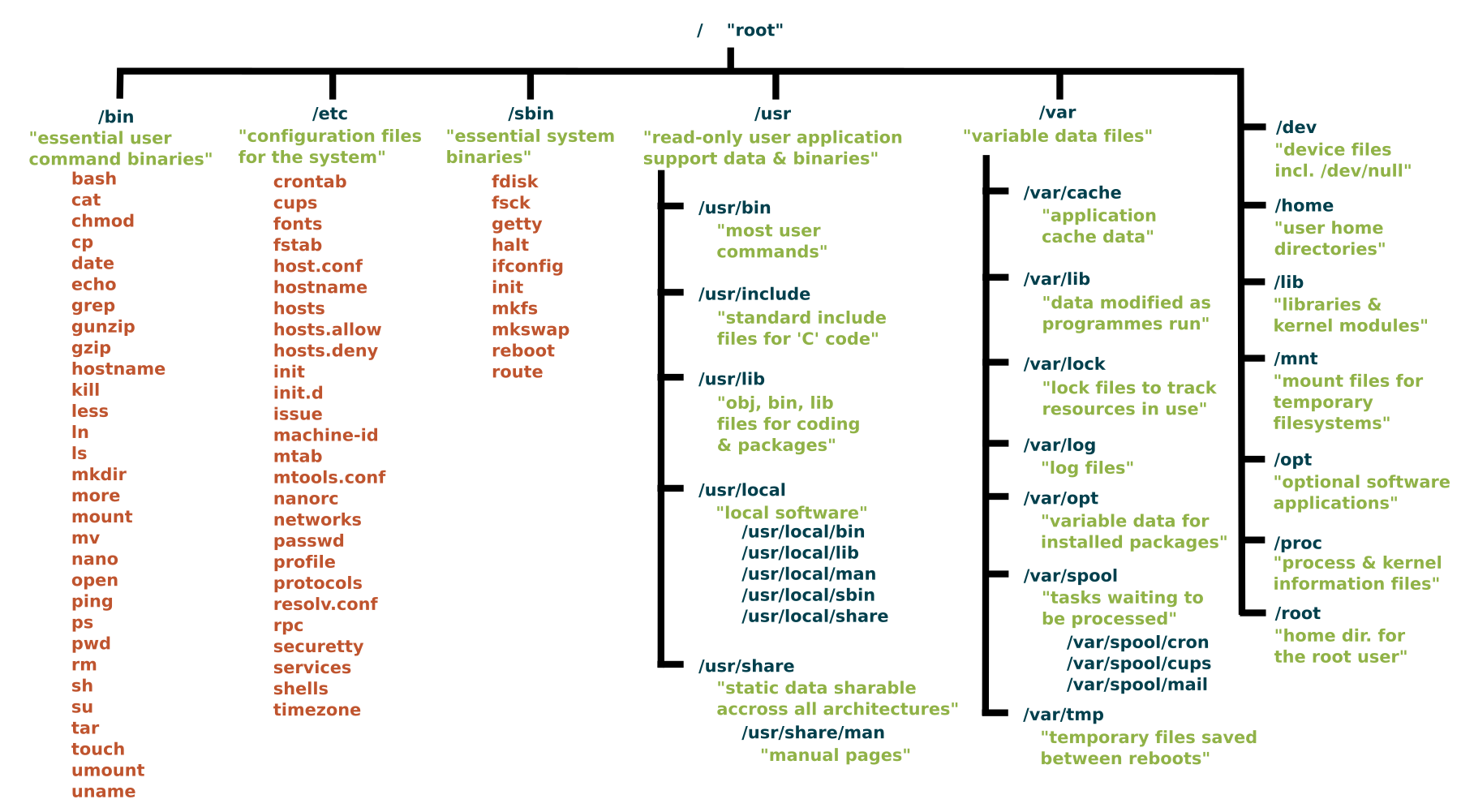
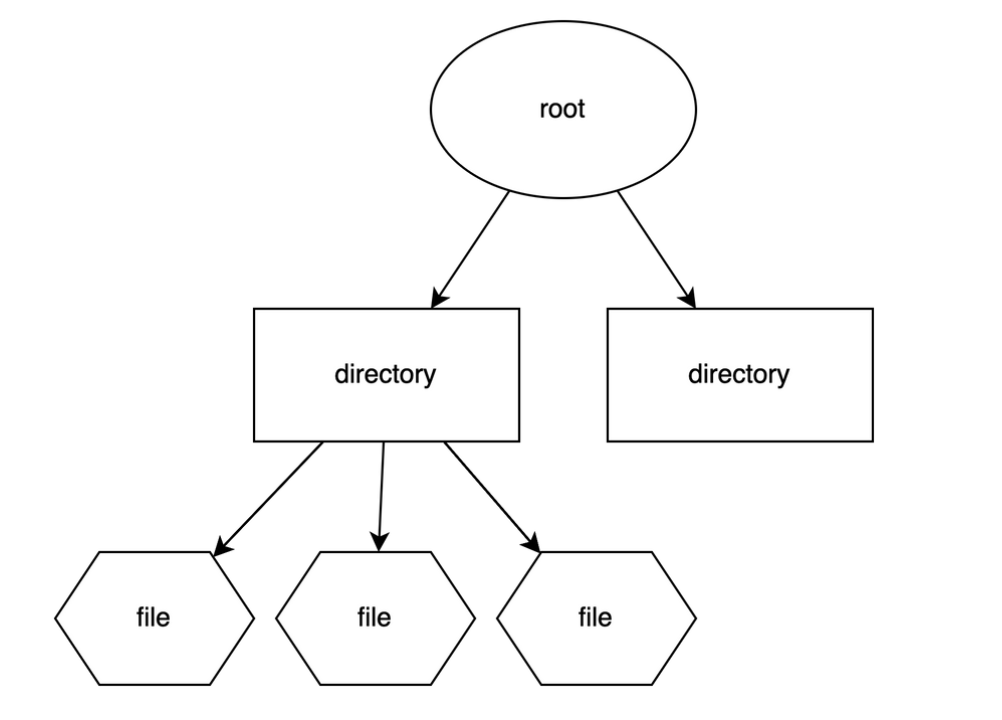
  • Root (/)
  • /home
  • /etc
  • /usr

🔐 Security Features

  • Strong permissions system
  • User/group control
  • SELinux/AppArmor

🧠 Popular Distributions

  • Ubuntu
  • Fedora
  • Debian
  • CentOS

⚡ Advantages

  • Free and open-source
  • Highly customizable
  • Secure and stable

⚠️ Limitations

  • Steeper learning curve
  • Limited commercial software

🍎 macOS OPERATING SYSTEM


🧠 Overview of macOS
Image
Image
Image
Image

macOS is developed by Apple and is known for its smooth performance, security, and elegant design.


⚙️ Key Features of macOS

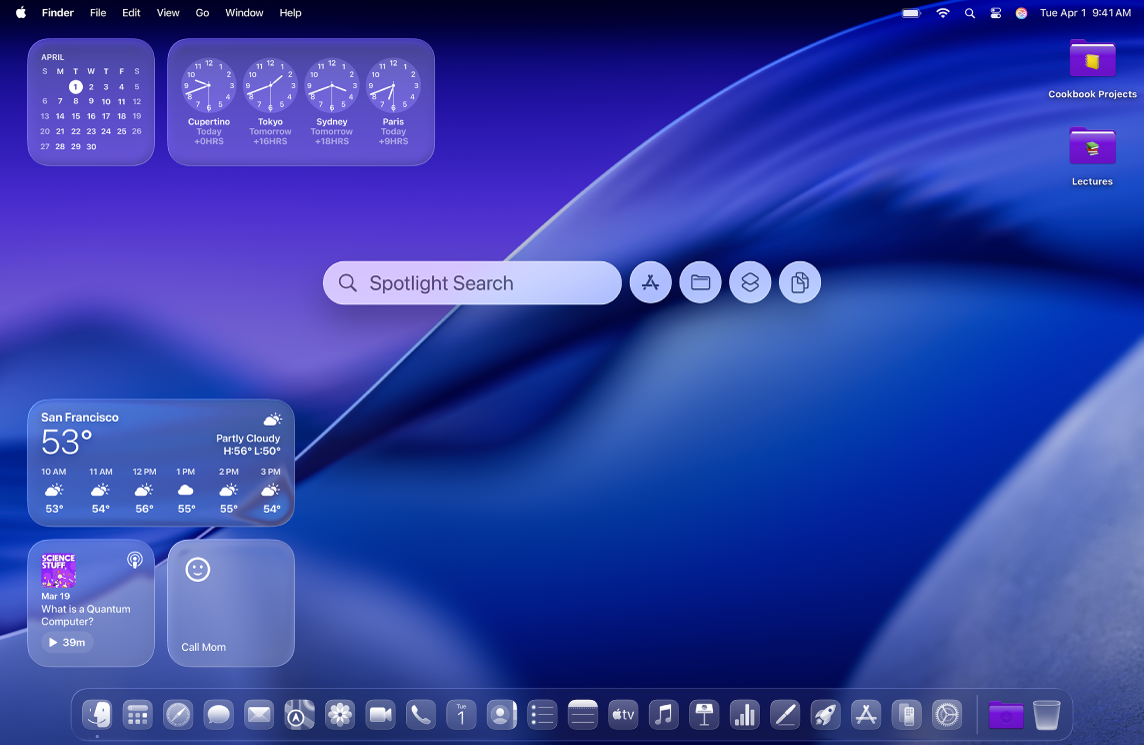
🎨 User Interface

  • Dock
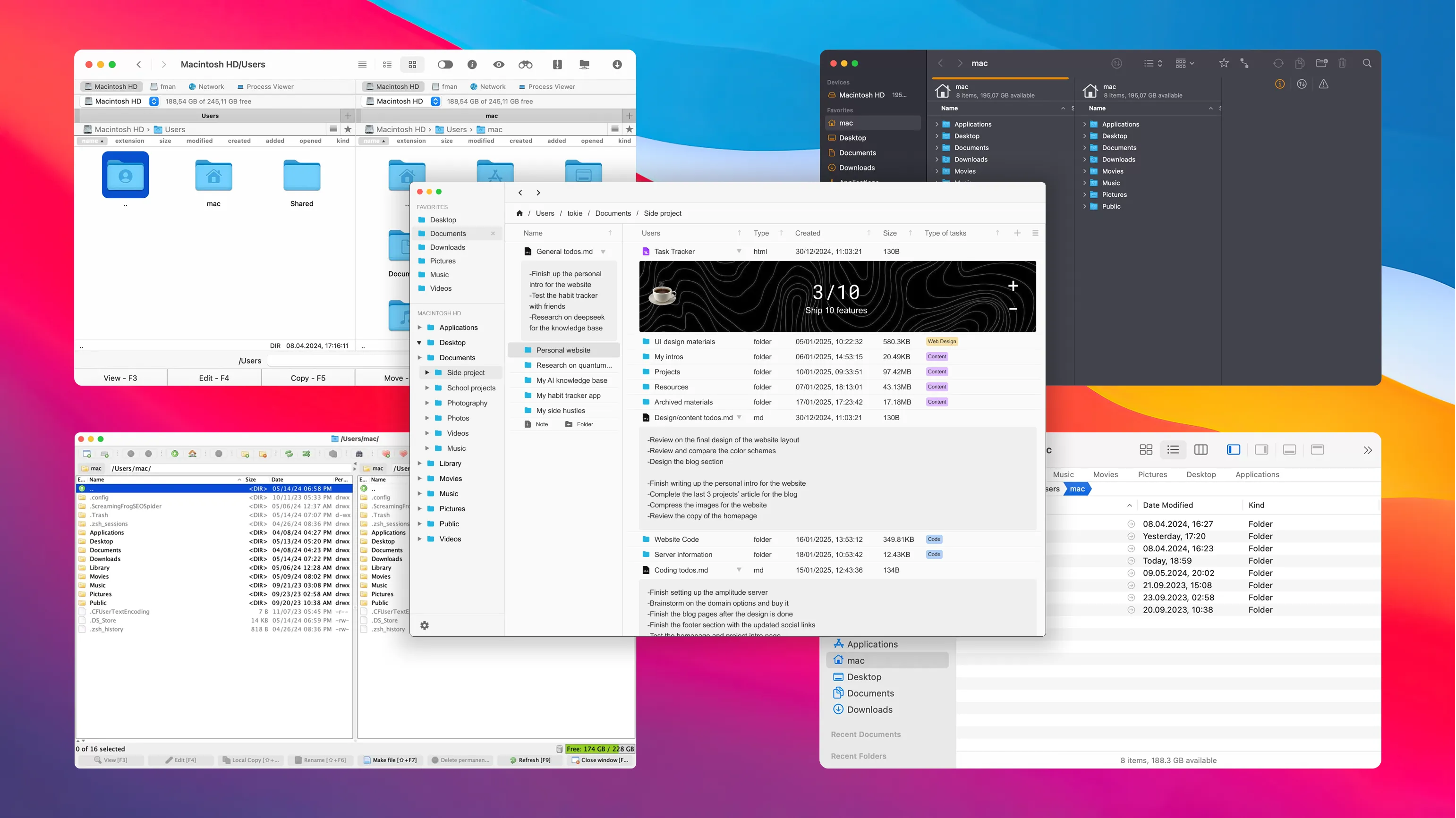
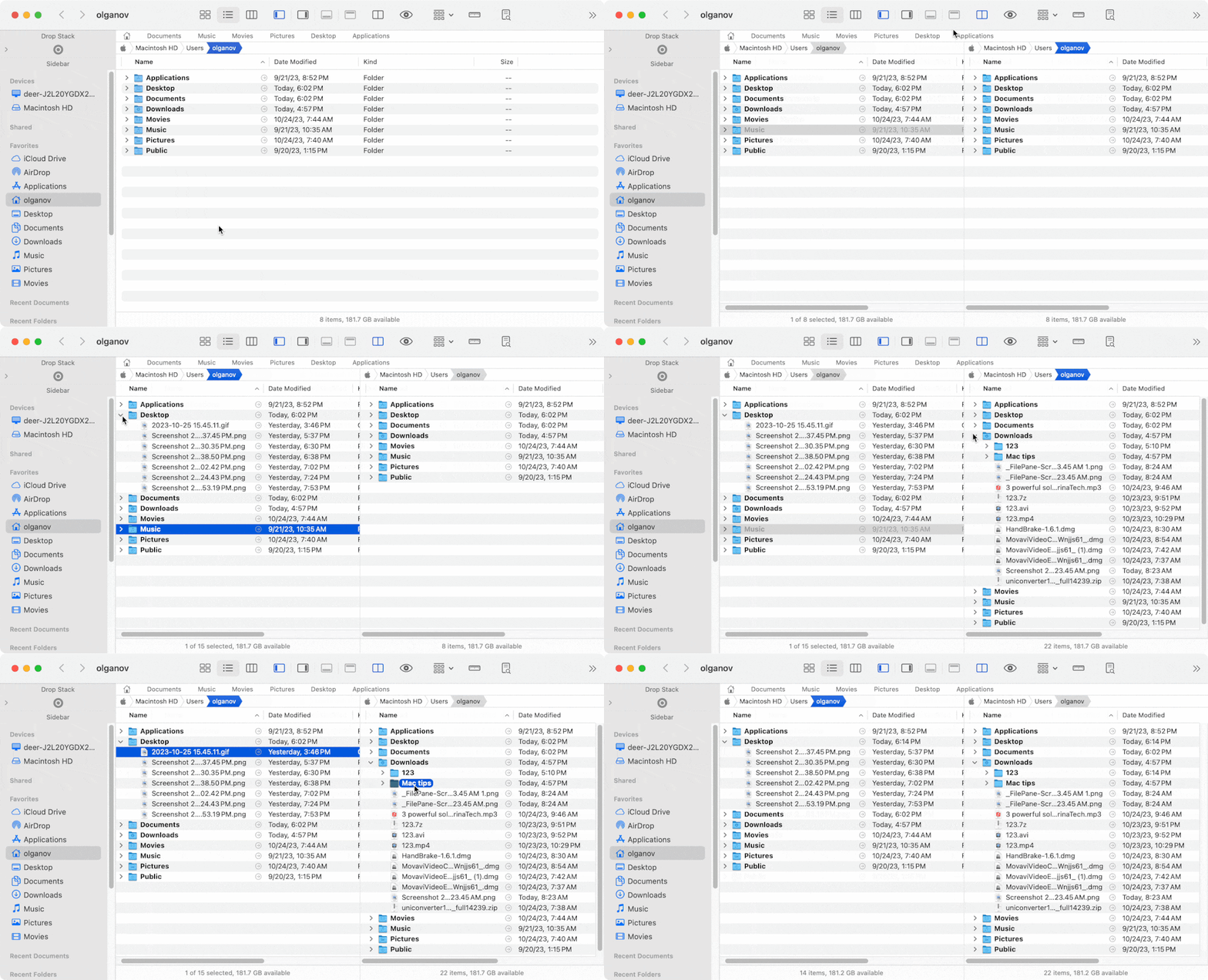
  • Finder
  • Spotlight search

🔄 Integration

  • Seamless integration with Apple ecosystem

⚡ Performance Optimization

  • Optimized for Apple hardware

🧩 macOS Components

  • Darwin kernel
  • Cocoa frameworks
  • Finder (file manager)

📁 File System

  • APFS (Apple File System)

🔐 Security Features

  • Gatekeeper
  • FileVault
  • Sandbox apps

⚡ Advantages

  • Stable and secure
  • Excellent UI/UX
  • Optimized performance

⚠️ Limitations

  • Expensive hardware
  • Limited customization
  • Less gaming support

⚖️ COMPARISON: Windows vs Linux vs macOS


📊 Feature Comparison Table

FeatureWindowsLinuxmacOS
CostPaidFreePaid (with hardware)
User InterfaceEasyModerateVery user-friendly
SecurityModerateHighHigh
CustomizationLimitedVery HighLimited
Software SupportExtensiveModerateGood

🧠 Use Cases

  • Windows → General users, gaming, business
  • Linux → Developers, servers, cybersecurity
  • macOS → Designers, developers, creatives

⚙️ Core OS Functions (All Systems)


🧠 Process Management

Image
Image
Image
Image
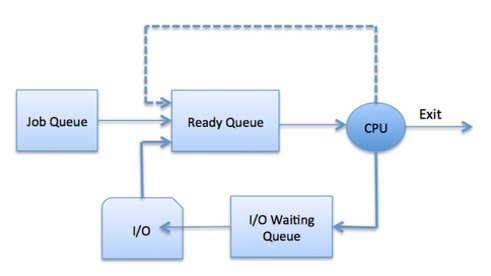
  • Handles running programs
  • Scheduling tasks

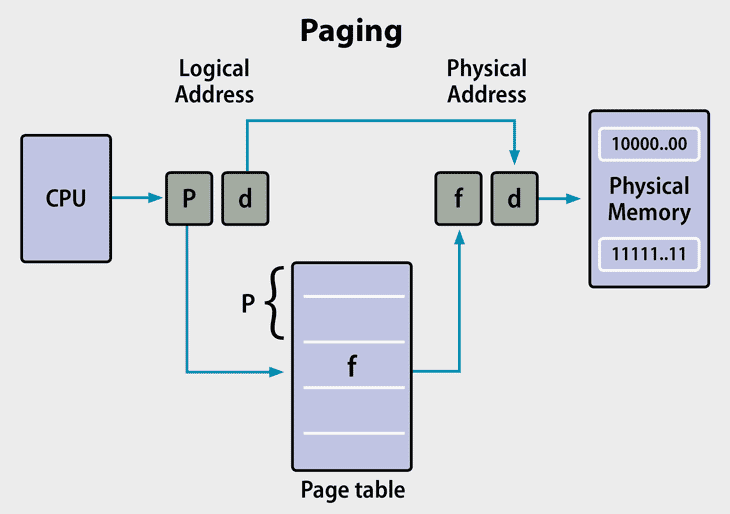
💾 Memory Management
Image
Image
Image
Image
  • Allocates RAM
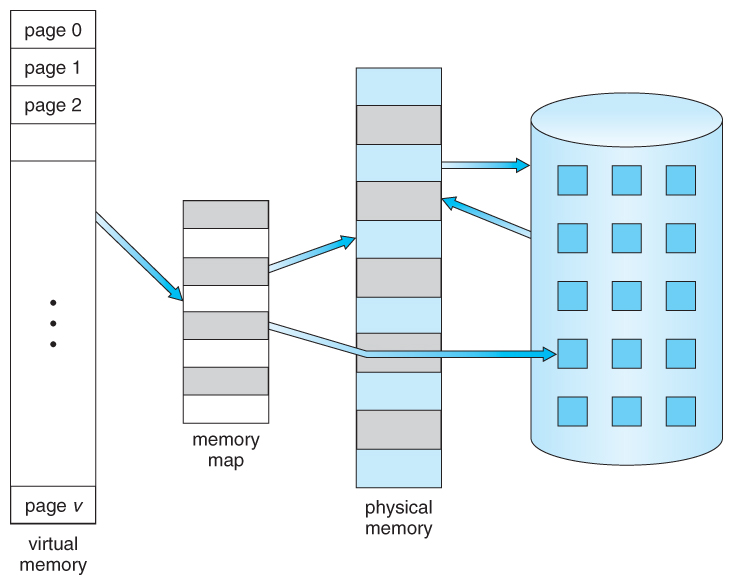
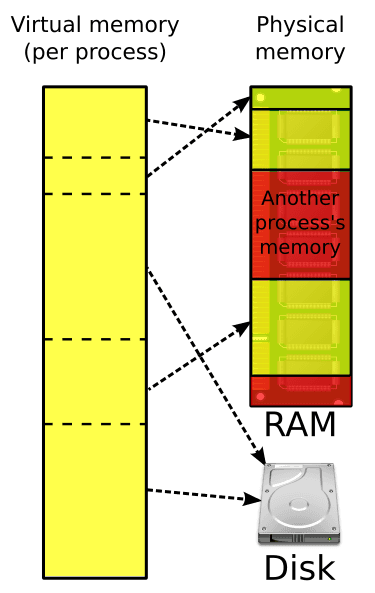
  • Uses virtual memory

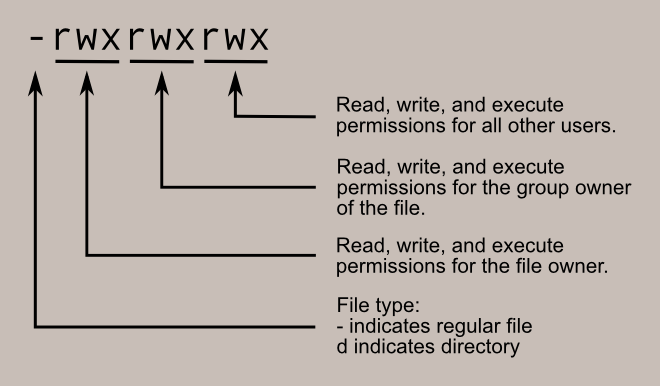
📂 File Management
Image
Image
Image
Image
  • Organizes files and directories
  • Controls access

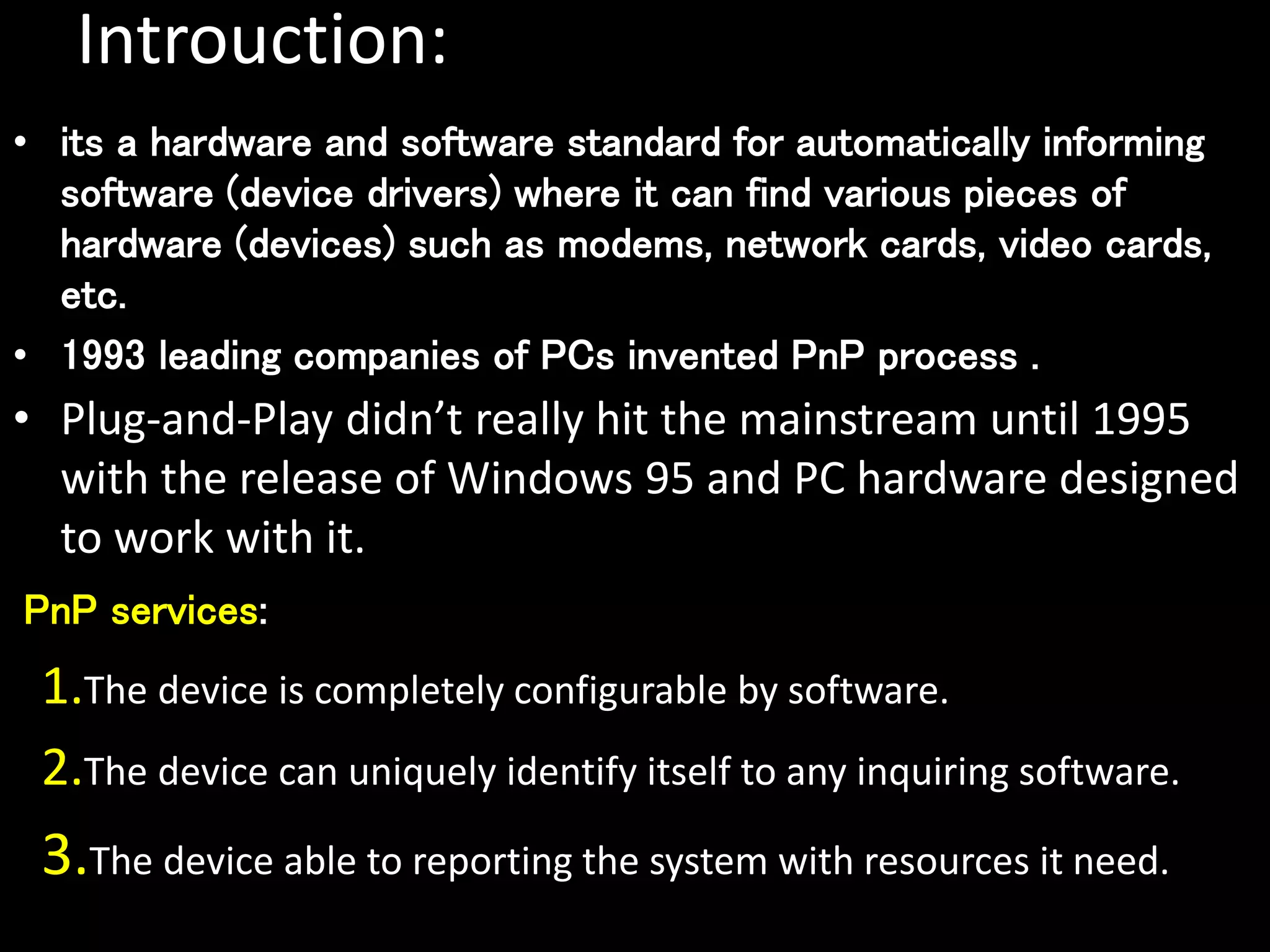
🔌 Device Management
Image
Image
Image
Image
  • Controls hardware devices
  • Uses drivers

🧩 User Interfaces


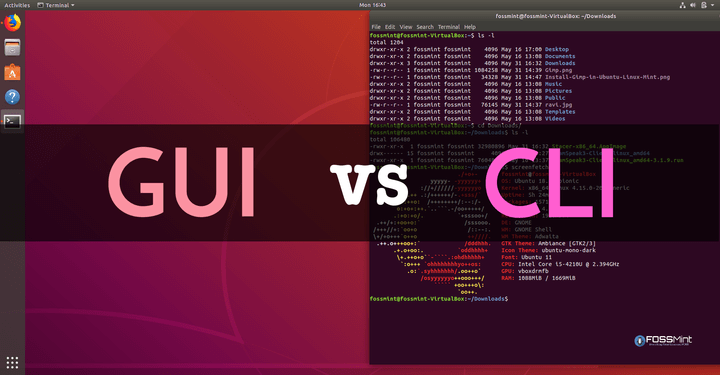
🖥️ GUI vs CLI
Image
Image
Image
Image
  • GUI → Easy, visual
  • CLI → Powerful, flexible

🌐 File Systems Comparison

OSFile System
WindowsNTFS
LinuxEXT4
macOSAPFS

🔐 Security Comparison


🛡️ Key Features:

  • Authentication
  • Encryption
  • Access control

Linux and macOS are generally more secure due to Unix-based design.


🚀 Modern Trends in Operating Systems
Image
Image
Image
Image
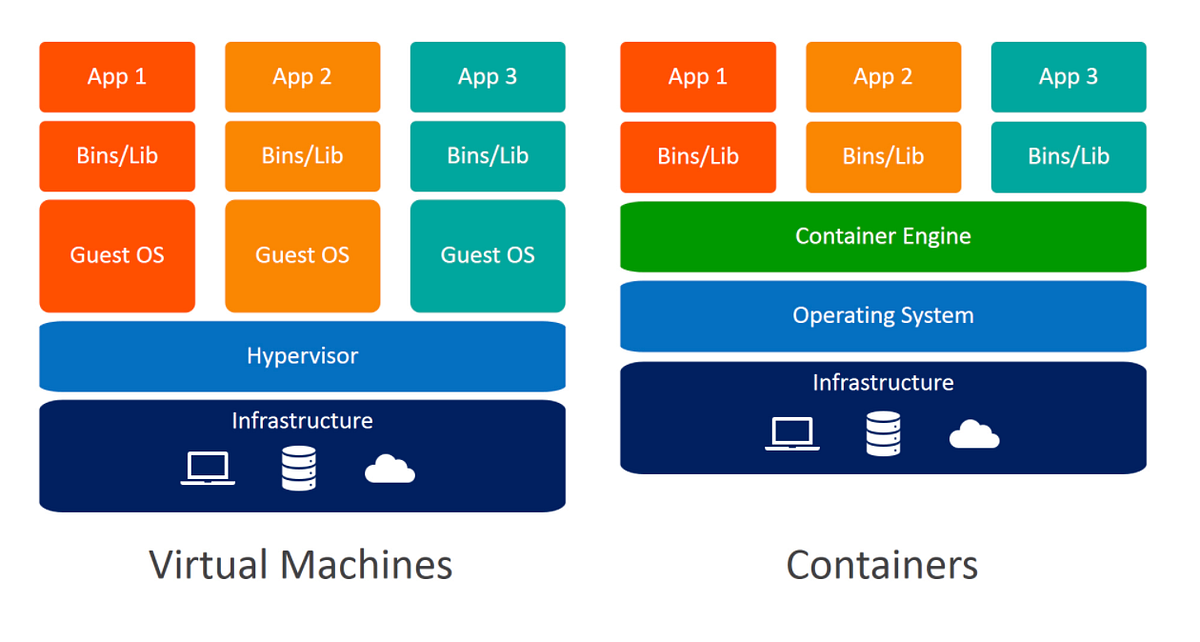
  • Cloud-based OS
  • Virtualization
  • AI integration
  • Containerization

⚡ Advantages of Operating Systems

  • Simplifies user interaction
  • Efficient resource management
  • Enables multitasking
  • Provides security

⚠️ Limitations

  • Complexity
  • Resource usage
  • Compatibility issues

🧠 Conclusion

Windows, Linux, and macOS are the pillars of modern computing. Each offers unique strengths:

  • Windows → Versatility and compatibility
  • Linux → Power and flexibility
  • macOS → Performance and design

Understanding these systems helps in:

  • Choosing the right OS
  • Improving productivity
  • Learning advanced computing
🏷️ Tags

💻 Computer Software Basics


🌐 Introduction to Computer Software

Image
Image

Computer software refers to the set of instructions, programs, and data that tell a computer how to perform tasks. Unlike hardware, software is intangible—it cannot be touched but can be executed.

In simple terms:

Hardware is the body, software is the brain

Software enables users to interact with hardware and perform useful work such as writing documents, browsing the internet, or running applications.


🧠 Importance of Software

  • Controls hardware operations
  • Provides user interface
  • Enables automation and productivity
  • Supports communication and networking
  • Drives innovation (AI, cloud, mobile apps)

🧩 Types of Computer Software


⚙️ 1. System Software

Image
Image
Image
Image

System software acts as a bridge between hardware and user applications.

Examples:

  • Operating Systems
  • Device Drivers
  • Utility Programs

🧠 Operating System (OS)

The OS is the most important system software.

Functions:

  • Process management
  • Memory management
  • File system management
  • Device management
  • Security

Examples:

  • Windows
  • Linux
  • macOS
  • Android

⚙️ 2. Device Drivers

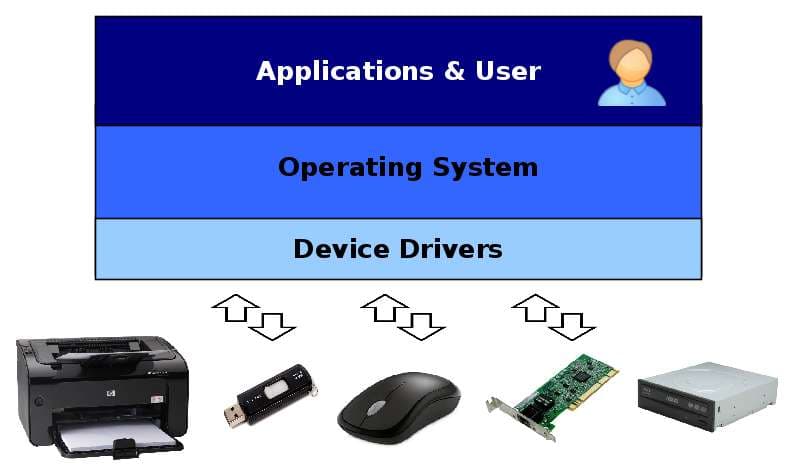
  • Enable communication between hardware and OS
  • Example: printer driver

🧰 3. Utility Software

  • Helps maintain system performance

Examples:

  • Antivirus
  • Disk cleanup
  • Backup tools

🖥️ 4. Application Software

Image
Image
Image
Image

Application software allows users to perform specific tasks.

Types:

📄 General Purpose

  • Word processors
  • Spreadsheets

🎨 Specialized

  • Graphic design
  • Video editing

🌐 Web Applications

  • Browsers
  • Online tools

🧠 5. Programming Software

Image
Image
Image
Image

Used to develop software.

Includes:

  • Compilers
  • Interpreters
  • Debuggers
  • IDEs

🧠 Software Development Process


🔄 Software Development Life Cycle (SDLC)

Image
Image
Image
Image

Stages:

  1. Planning
  2. Analysis
  3. Design
  4. Development
  5. Testing
  6. Deployment
  7. Maintenance

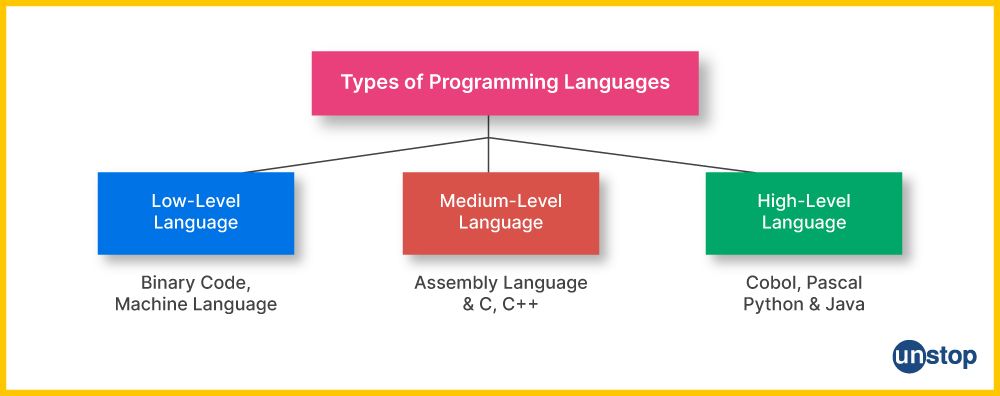
🧩 Programming Languages


🔤 Types:

Image
Image
Image
Image

🔹 Low-Level Languages

  • Machine language
  • Assembly language

🔹 High-Level Languages

  • Python
  • Java
  • C++

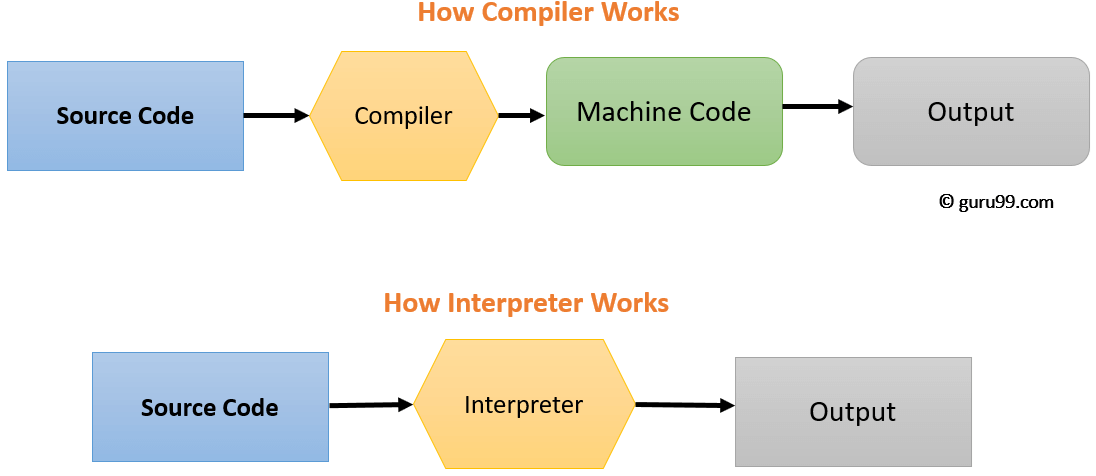
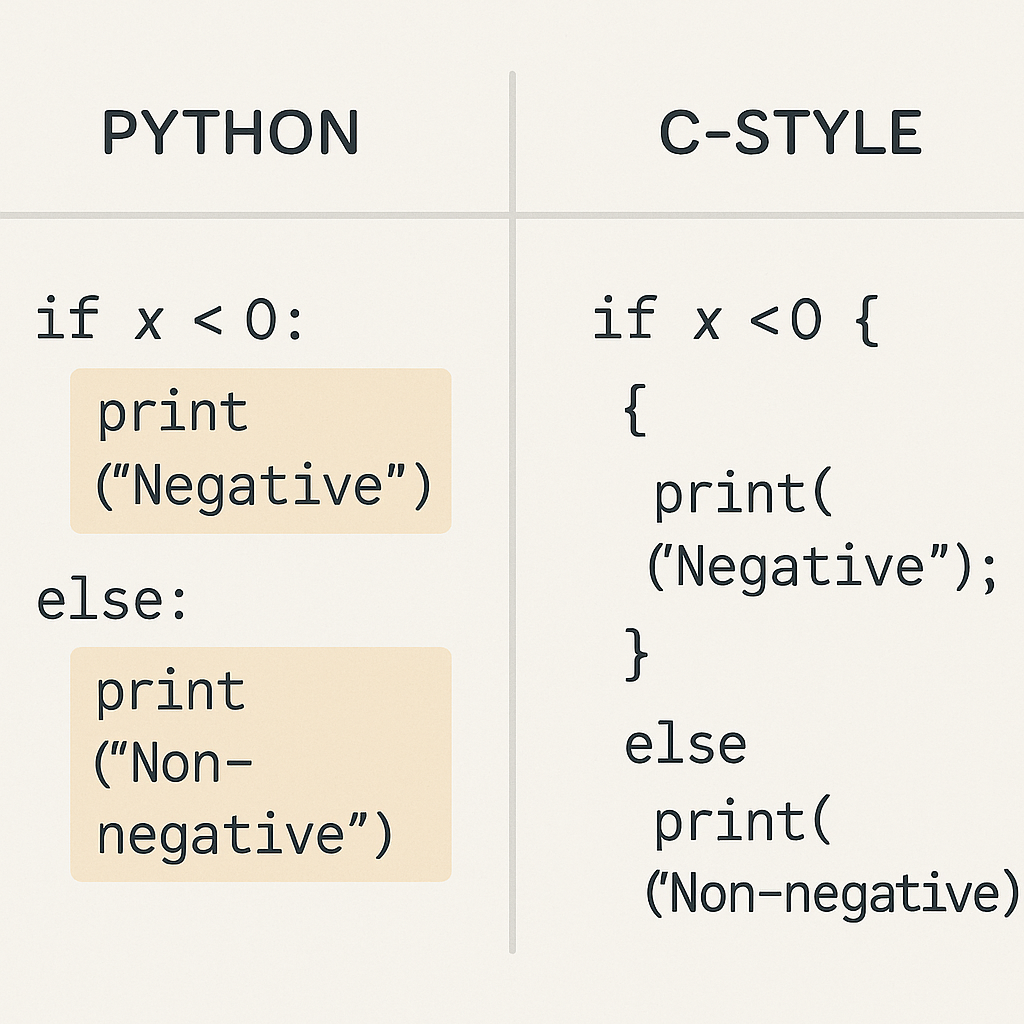
⚙️ Compilation vs Interpretation

  • Compiler → Converts entire code at once
  • Interpreter → Executes line by line

🧠 Software Components


📦 Modules

  • Independent units of software

🔗 Libraries

  • Reusable code

🧩 APIs

  • Allow communication between programs

🖥️ User Interface (UI)


🧭 Types:

Image
Image
Image
Image
  • GUI (Graphical User Interface)
  • CLI (Command Line Interface)
  • Touch Interface
  • Voice Interface

💾 Software Installation and Execution


🔄 Steps:

  • Install program
  • Load into memory
  • Execute via CPU

🔐 Software Security


⚠️ Threats:

Image
Image
Image
Image
  • Malware
  • Viruses
  • Ransomware

🛡️ Protection:

  • Antivirus
  • Firewalls
  • Encryption

🧠 Types of Software Based on Distribution


🌐 Open Source Software

  • Free to use and modify
  • Example: Linux

🔒 Proprietary Software

  • Owned by companies
  • Example: Windows

🆓 Freeware

  • Free but not modifiable

💰 Shareware

  • Trial-based software

⚙️ Software Performance Factors

  • Efficiency
  • Speed
  • Scalability
  • Reliability

🔄 Software vs Hardware

FeatureSoftwareHardware
NatureIntangiblePhysical
FunctionInstructionsExecution
DependencyRuns on hardwareNeeds software

🧠 Modern Software Trends

Image
Image
Image
Image
  • Artificial Intelligence
  • Cloud Computing
  • Mobile Applications
  • Blockchain

🧩 Advantages of Software

  • Automation
  • Flexibility
  • Scalability
  • Productivity

⚠️ Limitations

  • Bugs and errors
  • Security risks
  • Dependency on hardware
  • Maintenance required

🧠 Future of Software

  • AI-driven automation
  • Quantum software
  • Intelligent assistants
  • Low-code/no-code platforms

🧾 Conclusion

Computer software is the core driver of modern computing systems. It enables:

  • Interaction between users and machines
  • Execution of complex tasks
  • Innovation across industries

Understanding software basics is essential for:

  • Programming
  • IT careers
  • System design
  • Digital transformation

🏷️ Tags

🖥️ Input and Output Devices – Complete Detailed Guide


🔰 Introduction to Input and Output Devices

Image
Image
Image

Input and Output (I/O) devices are essential components of any computer system. They serve as the communication bridge between humans and machines, allowing users to provide data (input) and receive processed results (output).

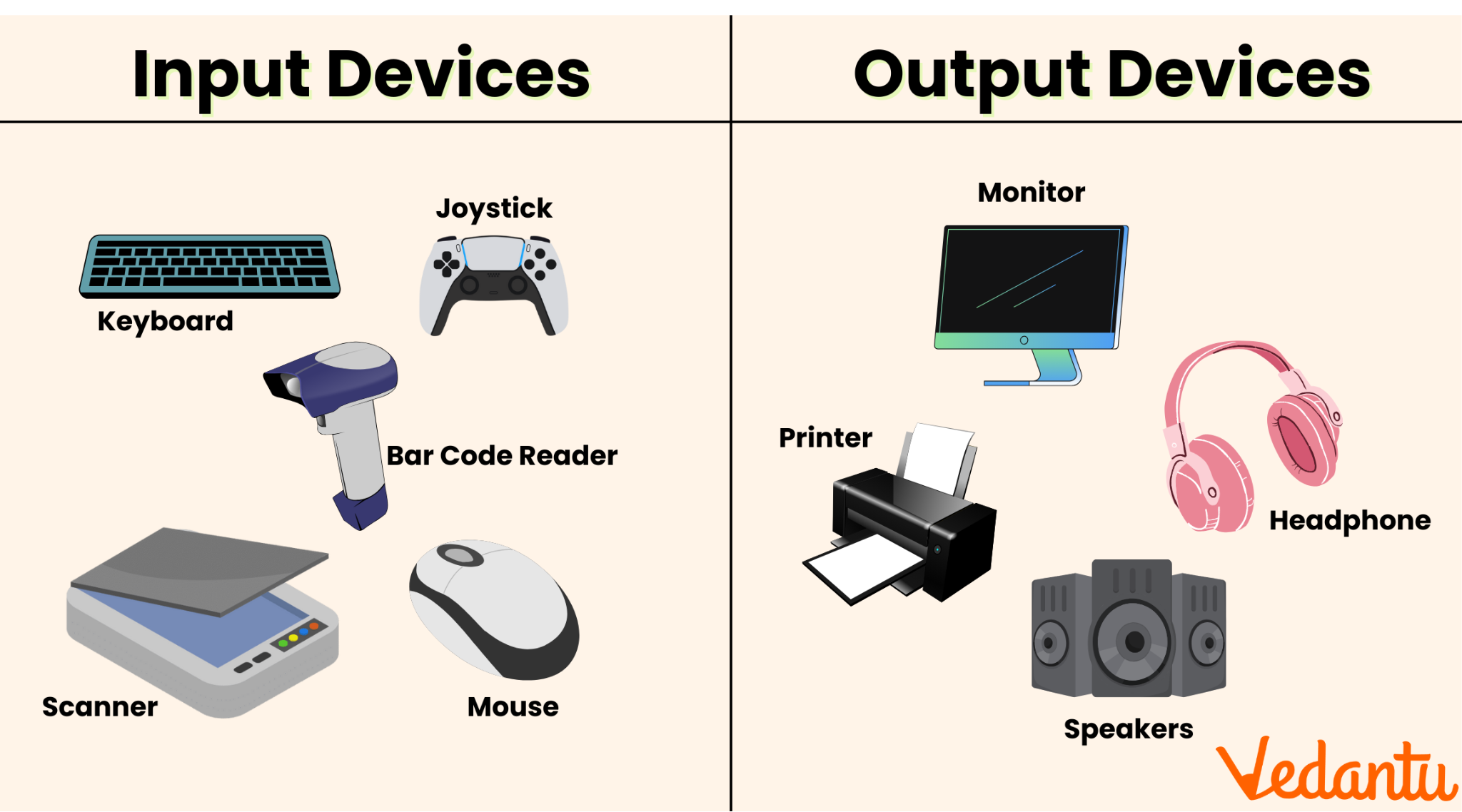
  • Input Devices → Send data into the computer
  • Output Devices → Receive data from the computer

Without I/O devices, a computer would be an isolated machine incapable of interaction.


🧠 Understanding the I/O System

The I/O system consists of:

  • Physical devices (keyboard, monitor, etc.)
  • Controllers and interfaces
  • Software drivers
  • Communication buses

Key Functions:

  • Data acquisition
  • Data presentation
  • Control signals
  • Feedback mechanisms

⌨️ INPUT DEVICES


📌 What Are Input Devices?

Image
Image
Image
Image

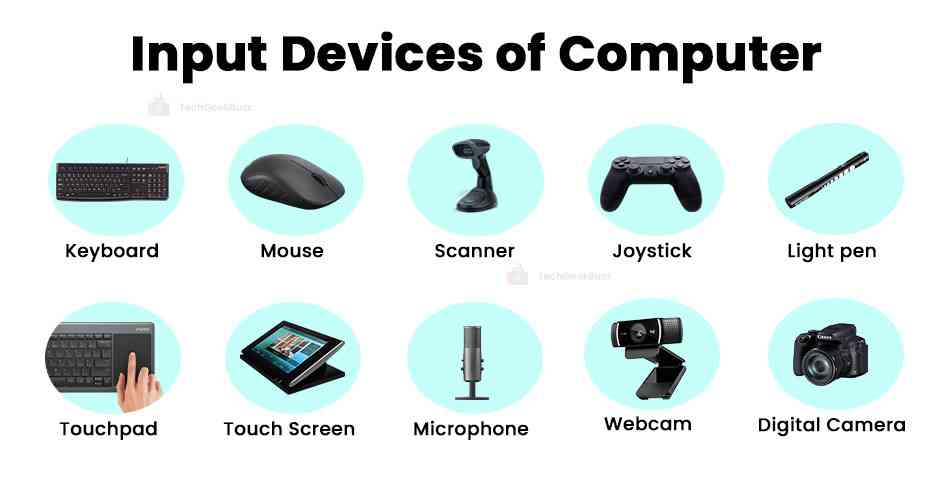
Input devices allow users to enter data, commands, and instructions into a computer system.

Characteristics:

  • Convert human actions into machine-readable signals
  • Provide control and interaction
  • Can be manual or automatic

🔤 Types of Input Devices


1. Keyboard

Image
Image
Image
Image

The keyboard is the most common input device.

Features:

  • QWERTY layout
  • Function keys (F1–F12)
  • Numeric keypad
  • Special keys (Ctrl, Alt, Shift)

Types:

  • Mechanical keyboards
  • Membrane keyboards
  • Virtual keyboards

Working:

Each key press generates a scan code, which is interpreted by the computer.


🖱️ 2. Mouse

Image
Image
Image
Image

The mouse is a pointing device used to control the cursor.

Types:

  • Optical mouse
  • Laser mouse
  • Wireless mouse

Functions:

  • Clicking
  • Dragging
  • Scrolling

📱 3. Touchscreen

Image
Image
Image
Image

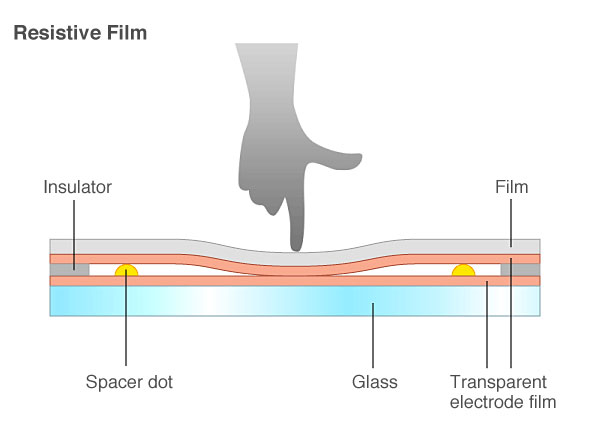
Touchscreens allow direct interaction using fingers.

Types:

  • Resistive
  • Capacitive
  • Infrared

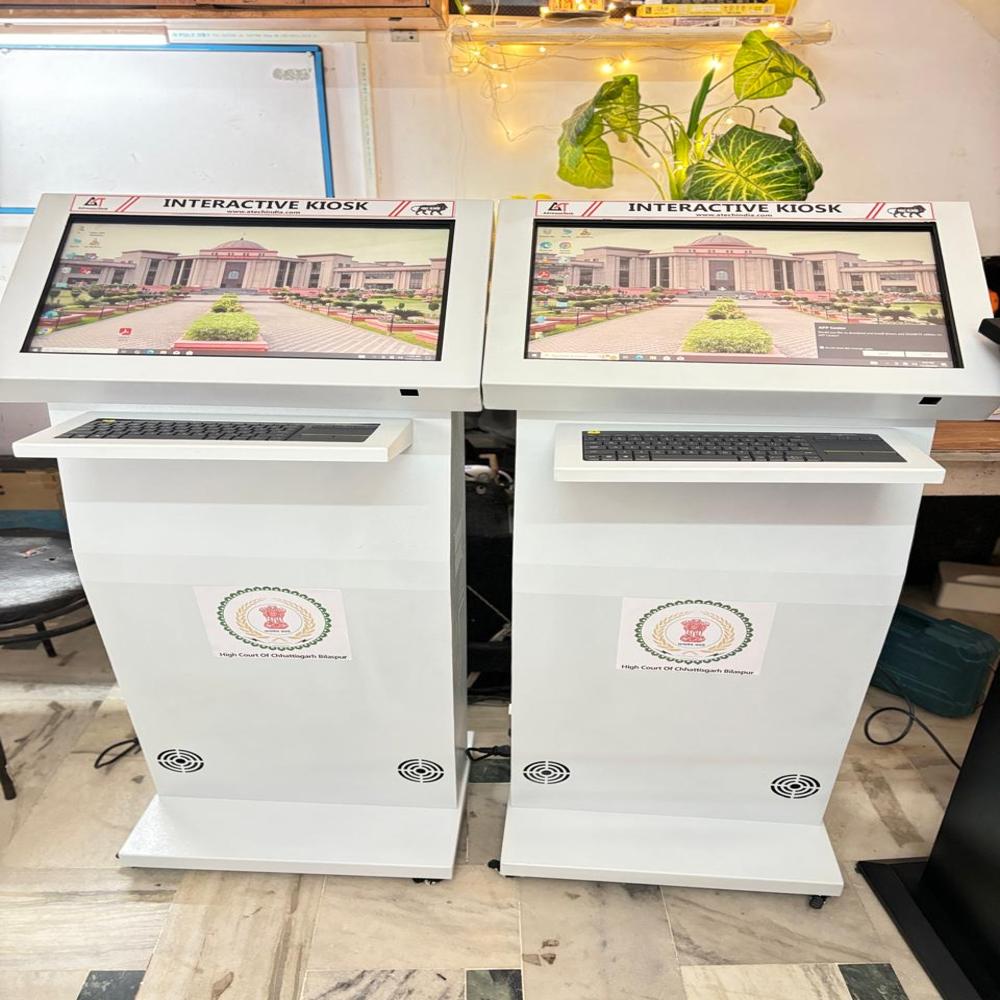
Uses:

  • Smartphones
  • ATMs
  • Interactive kiosks

🎤 4. Microphone

Image
Image
Image
Image

Used to input audio signals.

Applications:

  • Voice commands
  • Recording
  • Communication

📷 5. Scanner

Image
Image
Image
Image

Converts physical documents into digital format.

Types:

  • Flatbed scanner
  • Handheld scanner
  • Barcode scanner

Technology:

Uses optical sensors to capture images.


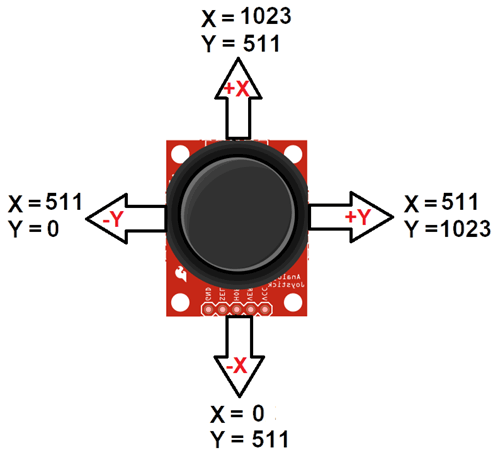
🎮 6. Joystick

Image
Image
Image
Image

Used mainly for gaming and simulations.


📸 7. Webcam

Image
Image
Image
Image

Captures images and video.


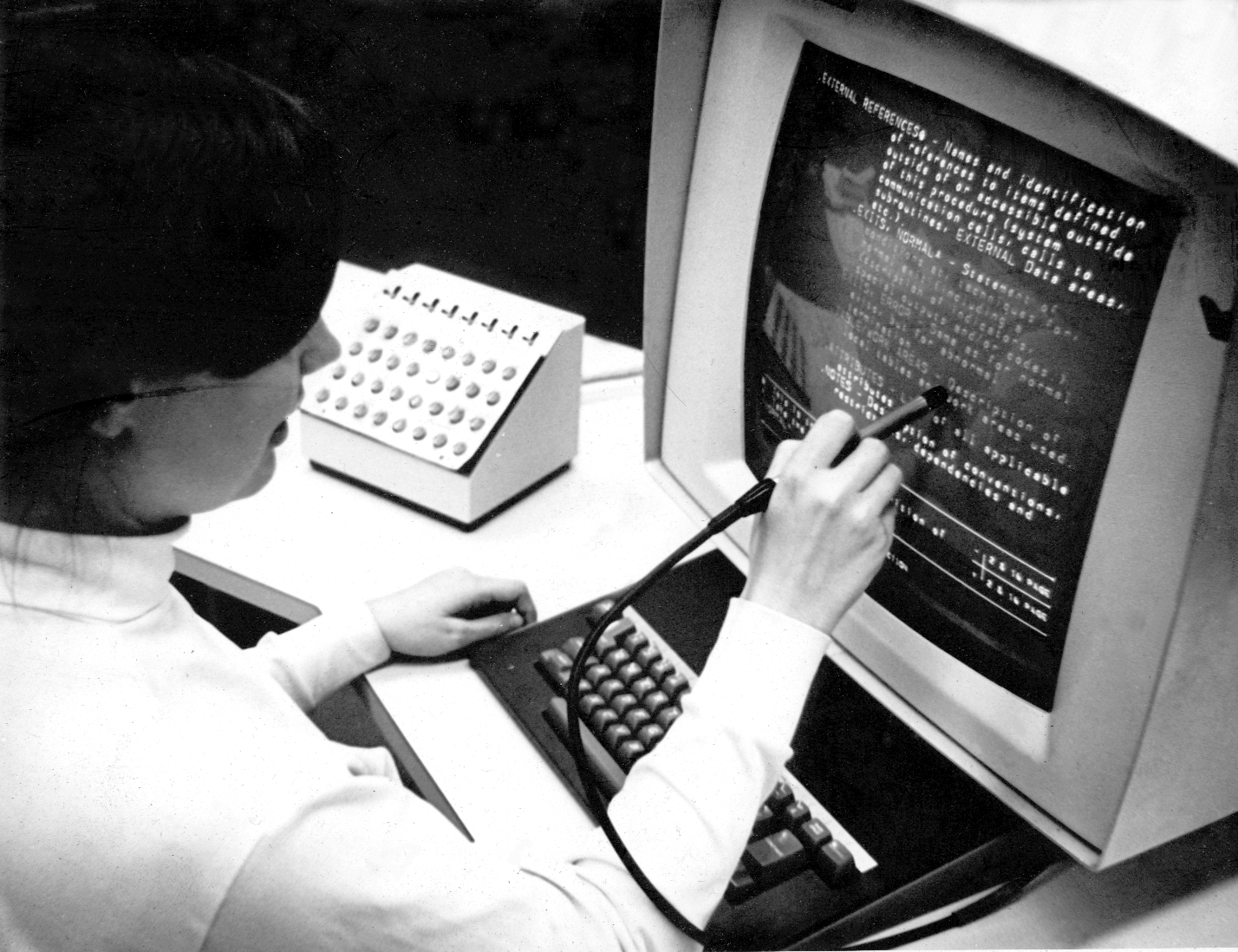
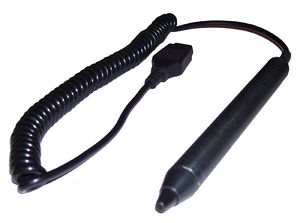
✍️ 8. Light Pen

Image
Image
Image
Image

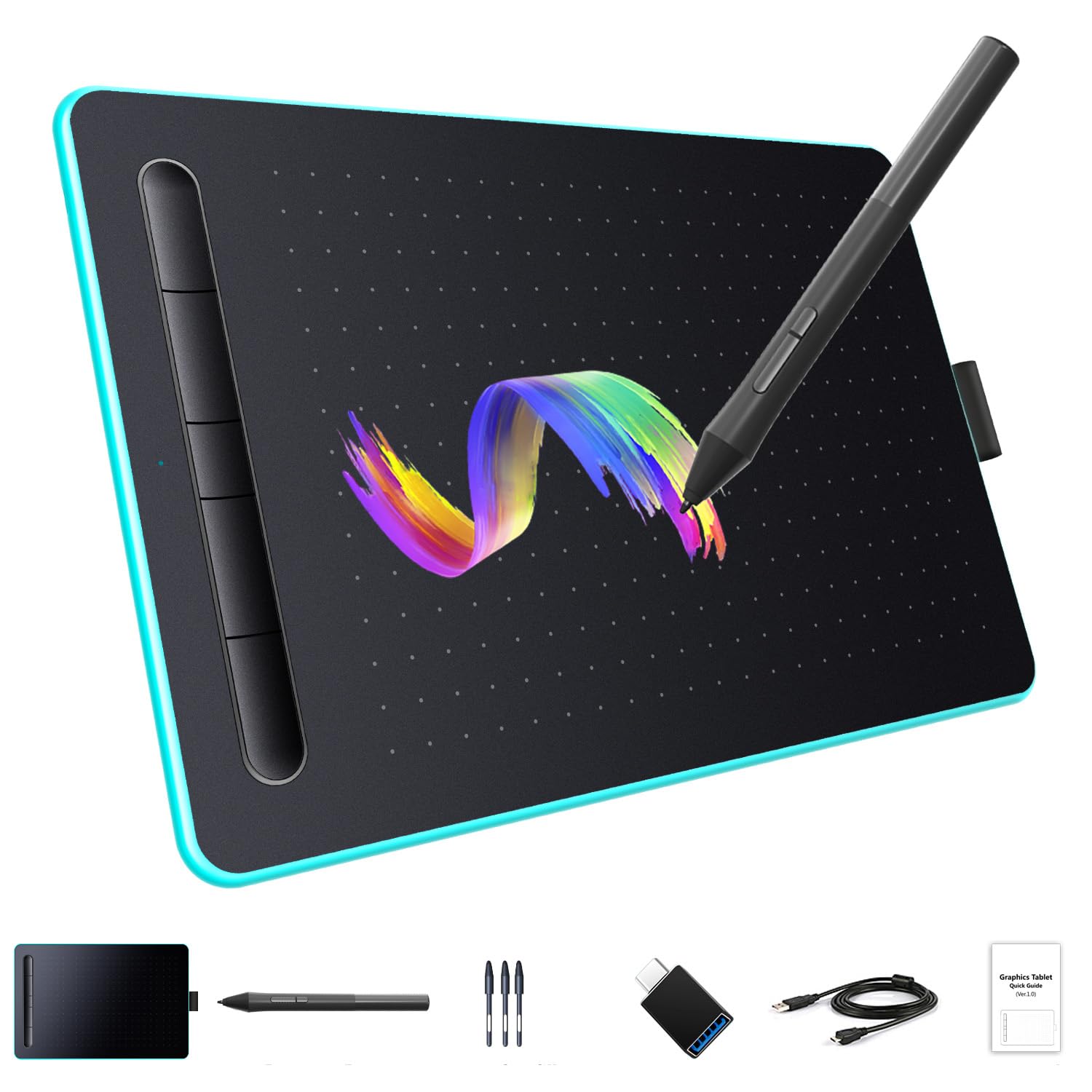
Used for drawing directly on screens (older tech).


🧾 9. Optical Mark Reader (OMR)

Image
Image
Image
Image

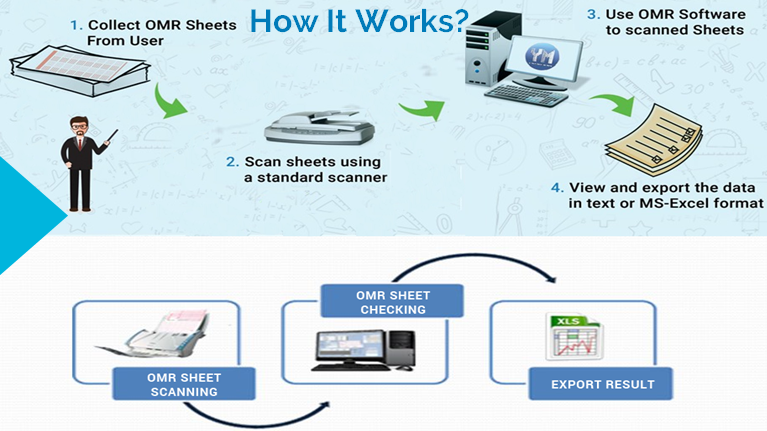
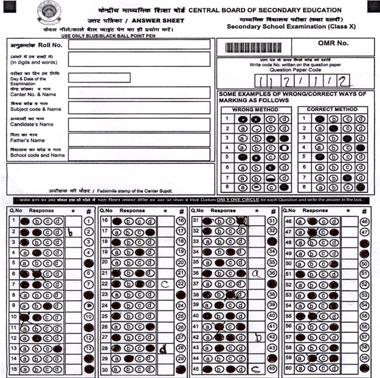
Reads marked answers (e.g., exams).


🔤 10. Optical Character Reader (OCR)

Converts printed text into editable digital text.


🧬 11. Biometric Devices

Image
Image
Image
Image

Used for security and identification.

Types:

  • Fingerprint scanner
  • Iris scanner
  • Face recognition

🌐 Advanced Input Devices

  • Motion sensors
  • Gesture recognition
  • VR controllers
  • Eye-tracking devices

🖥️ OUTPUT DEVICES


📌 What Are Output Devices?

Image
Image
Image
Image

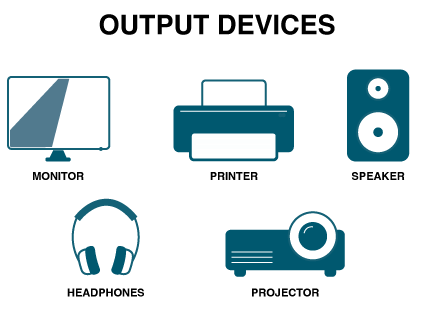
Output devices present processed data to users.

Characteristics:

  • Convert digital signals into human-readable form
  • Provide visual, audio, or physical output

📺 Types of Output Devices


🖥️ 1. Monitor

Image
Image
Image
Image

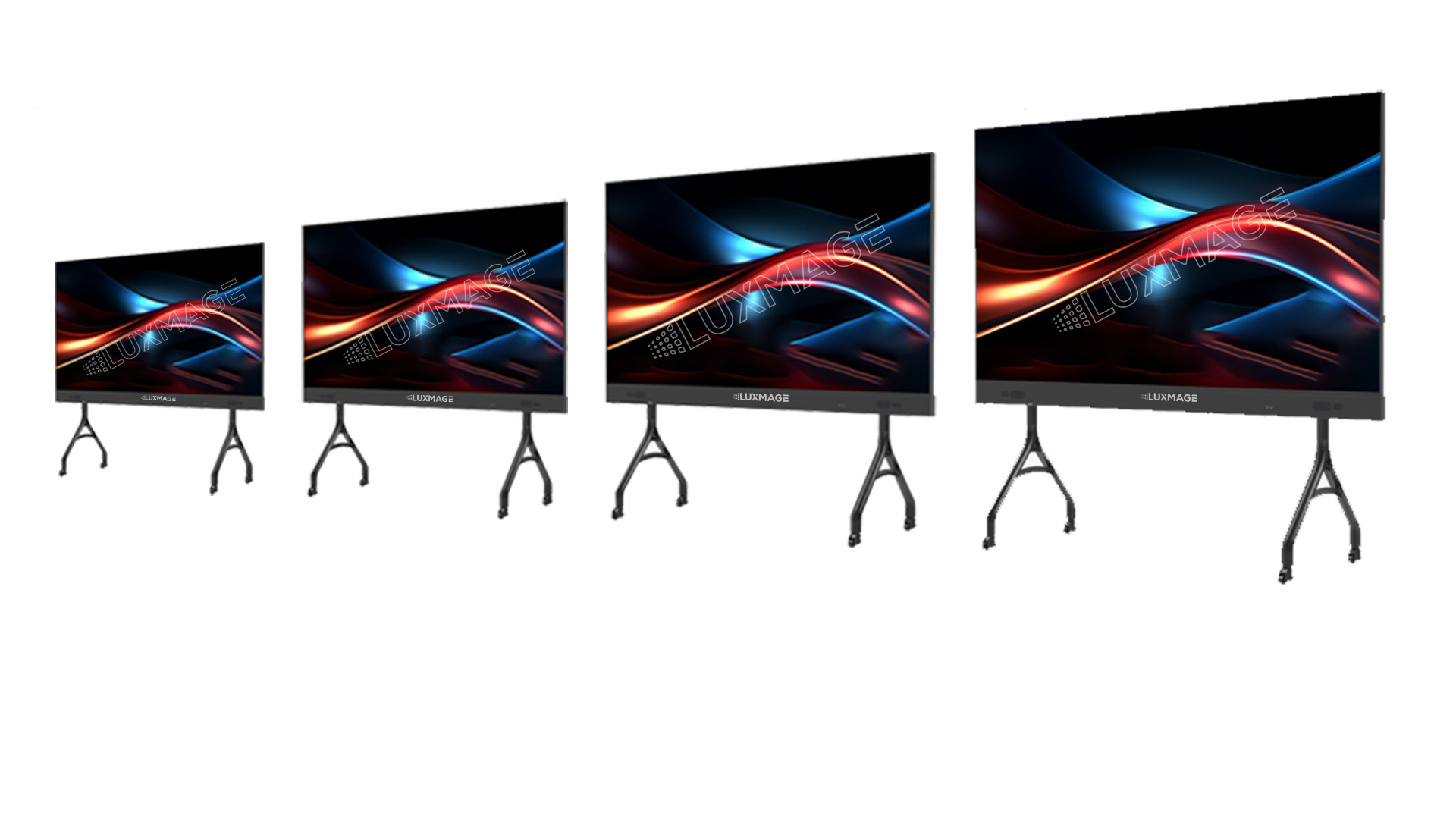
Displays visual output.

Types:

  • CRT (old)
  • LCD
  • LED
  • OLED

Features:

  • Resolution
  • Refresh rate
  • Screen size

🖨️ 2. Printer

Image
Image
Image
Image

Produces hard copies.

Types:

  • Inkjet
  • Laser
  • Dot matrix

🔊 3. Speakers

Image
Image
Image
Image

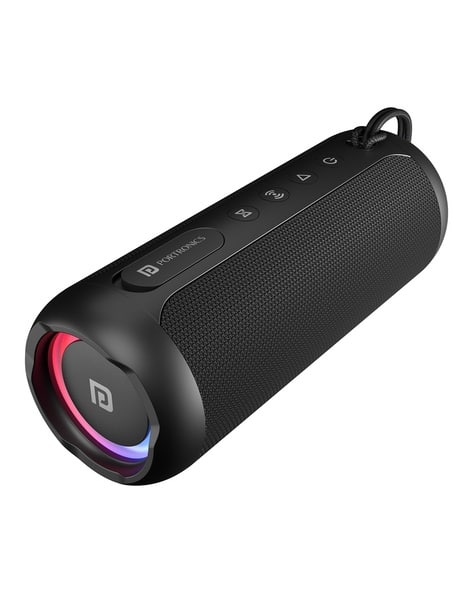
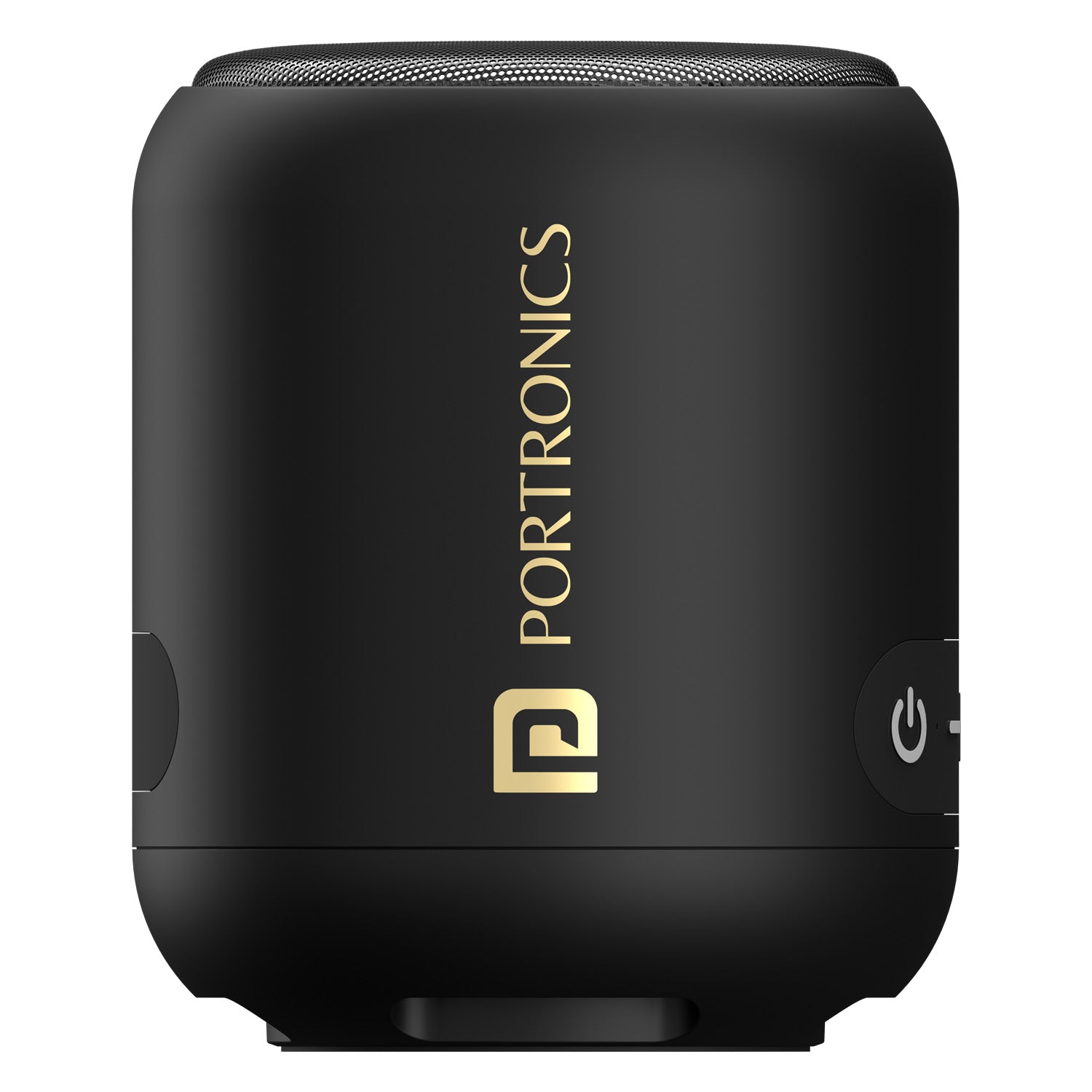
Produce sound output.


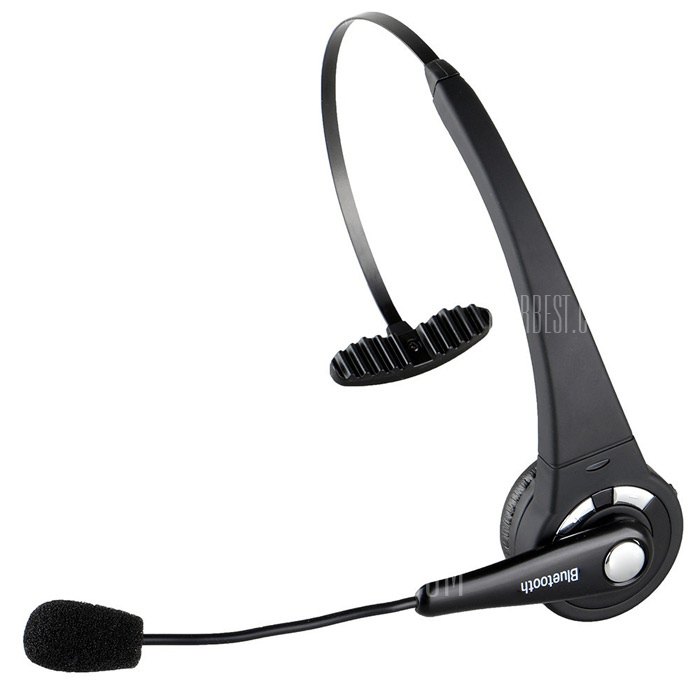
🎧 4. Headphones

Provide personal audio output.


📽️ 5. Projector

Image
Image
Image

Displays visuals on large screens.


🧾 6. Plotter

Image
Image
Image
Image

Used for large technical drawings.


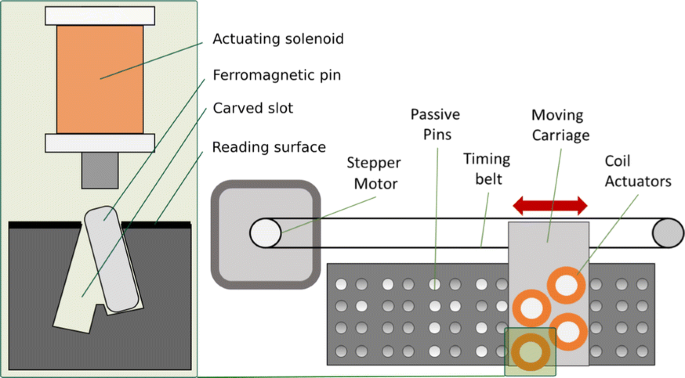
📟 7. Braille Display

Image
Image
Image
Image

Helps visually impaired users.


🌐 Advanced Output Devices

  • VR headsets
  • AR displays
  • Holographic displays

🔄 Input vs Output Devices

FeatureInput DevicesOutput Devices
FunctionEnter dataDisplay results
DirectionUser → ComputerComputer → User
ExamplesKeyboard, MouseMonitor, Printer

⚙️ Input/Output Interfaces


🔌 Ports and Connections

Image
Image
Image
Image

Common interfaces:

  • USB
  • HDMI
  • VGA
  • Bluetooth
  • Wi-Fi

🔄 I/O Data Transfer Methods

  1. Programmed I/O
  2. Interrupt-driven I/O
  3. Direct Memory Access (DMA)

🧠 Drivers and Software

  • Device drivers enable communication
  • OS manages I/O operations
  • Examples: printer drivers, audio drivers

⚡ Performance Factors

  • Speed
  • Accuracy
  • Latency
  • Bandwidth

🔐 Security in I/O Devices

  • Biometric authentication
  • Encryption
  • Secure input methods

🧩 Emerging Trends

Image
Image
Image
Image
  • AI-based interfaces
  • Voice assistants
  • Brain-computer interfaces
  • Smart wearables

📊 Advantages of I/O Devices

  • User interaction
  • Automation
  • Accessibility
  • Efficiency

⚠️ Limitations

  • Cost
  • Maintenance
  • Compatibility issues
  • Security risks

🧠 Conclusion

Input and Output devices are fundamental to computing systems. They enable:

  • Human-computer interaction
  • Data processing and visualization
  • Automation and control

As technology evolves, I/O devices are becoming more intelligent, immersive, and intuitive, shaping the future of human-computer interaction.

🏷️ Tags