Tag Archives: HDMI

🖥️ Computer Hardware Basics


🌐 Introduction to Computer Hardware

Image
Image
Image
Image

Computer hardware refers to the physical components of a computer system—the parts you can see and touch. These components work together to process data, execute instructions, and produce output.

At a high level, hardware includes:

  • Processing devices (CPU)
  • Memory and storage
  • Input and output devices
  • Communication components

Hardware is the foundation upon which software operates.


🧠 Importance of Computer Hardware

  • Enables data processing and computation
  • Provides storage for programs and data
  • Facilitates interaction with users
  • Supports networking and communication
  • Determines system performance and capability

🧩 Major Components of Computer Hardware


⚙️ 1. Central Processing Unit (CPU)

Image
Image
Image
Image

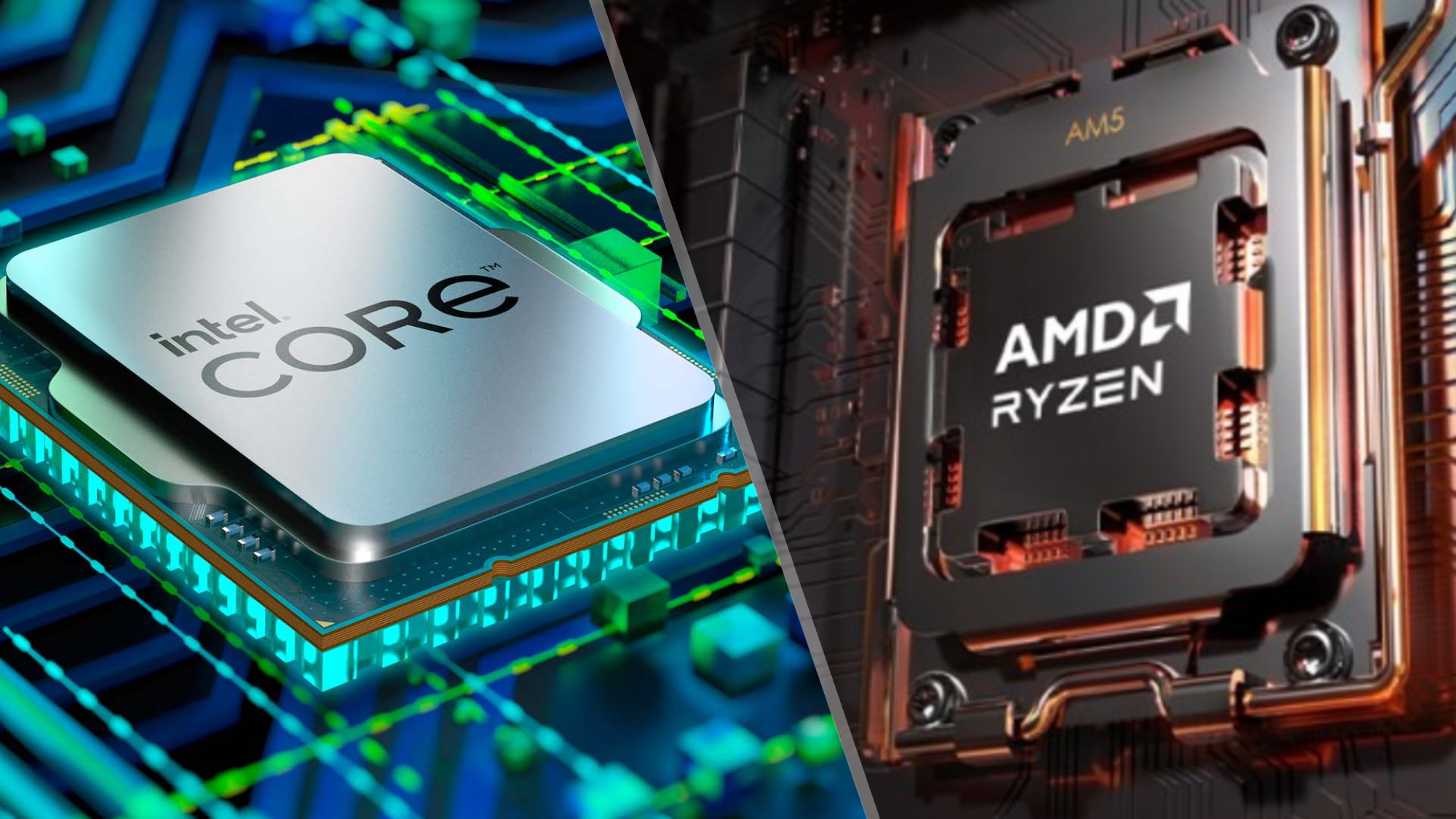
The CPU (Central Processing Unit) is the brain of the computer. It executes instructions and controls all operations.

Key Parts:

🔹 Arithmetic Logic Unit (ALU)

  • Performs arithmetic and logical operations

🔹 Control Unit (CU)

  • Directs data flow
  • Manages instruction execution

🔹 Registers

  • Small, high-speed storage locations

⚡ CPU Performance Factors

  • Clock speed (GHz)
  • Number of cores
  • Cache size
  • Architecture

🧠 Multi-Core Processors

Modern CPUs have multiple cores to improve multitasking and parallel processing.


🧮 2. Memory (Primary Memory)

Image
Image
Image
Image

Memory stores data temporarily or permanently.

Types:

🔹 RAM (Random Access Memory)

  • Volatile
  • Temporary storage

🔹 ROM (Read Only Memory)

  • Non-volatile
  • Stores firmware

🔹 Cache Memory

  • High-speed memory close to CPU

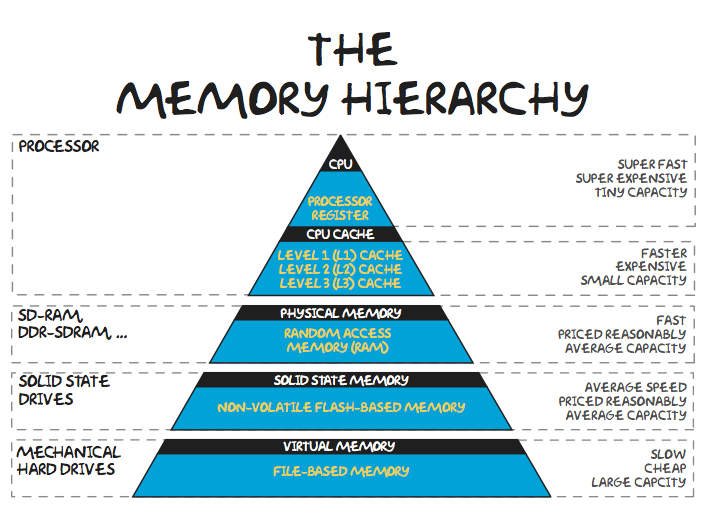
🧠 Memory Hierarchy

  1. Registers
  2. Cache
  3. RAM
  4. Secondary storage

💾 3. Storage Devices (Secondary Memory)

Image
Image
Image
Image

Storage devices store data permanently.

Types:

🔹 Hard Disk Drive (HDD)

  • Magnetic storage
  • Large capacity

🔹 Solid State Drive (SSD)

  • Faster, no moving parts

🔹 Optical Storage

  • CDs, DVDs

⚡ Storage Comparison

FeatureHDDSSD
SpeedSlowFast
DurabilityLowHigh
CostCheapExpensive

🧩 4. Motherboard

Image
Image
Image
Image

The motherboard is the main circuit board connecting all components.

Features:

  • CPU socket
  • RAM slots
  • Expansion slots
  • Chipset

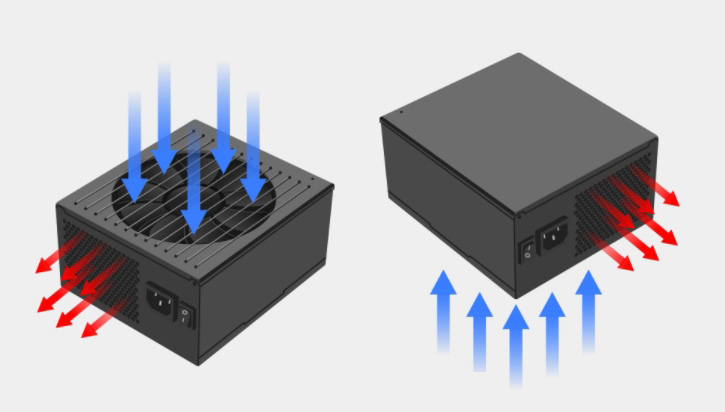
🔌 5. Power Supply Unit (PSU)
Image
Image
Image
Image
  • Converts AC to DC
  • Supplies power to components

🎮 6. Graphics Processing Unit (GPU)

Image
Image
Image
Image
  • Handles graphics rendering
  • Essential for gaming, AI, video editing

🧠 Types:

  • Integrated GPU
  • Dedicated GPU

🔊 7. Sound Card

Image
Image
Image
Image
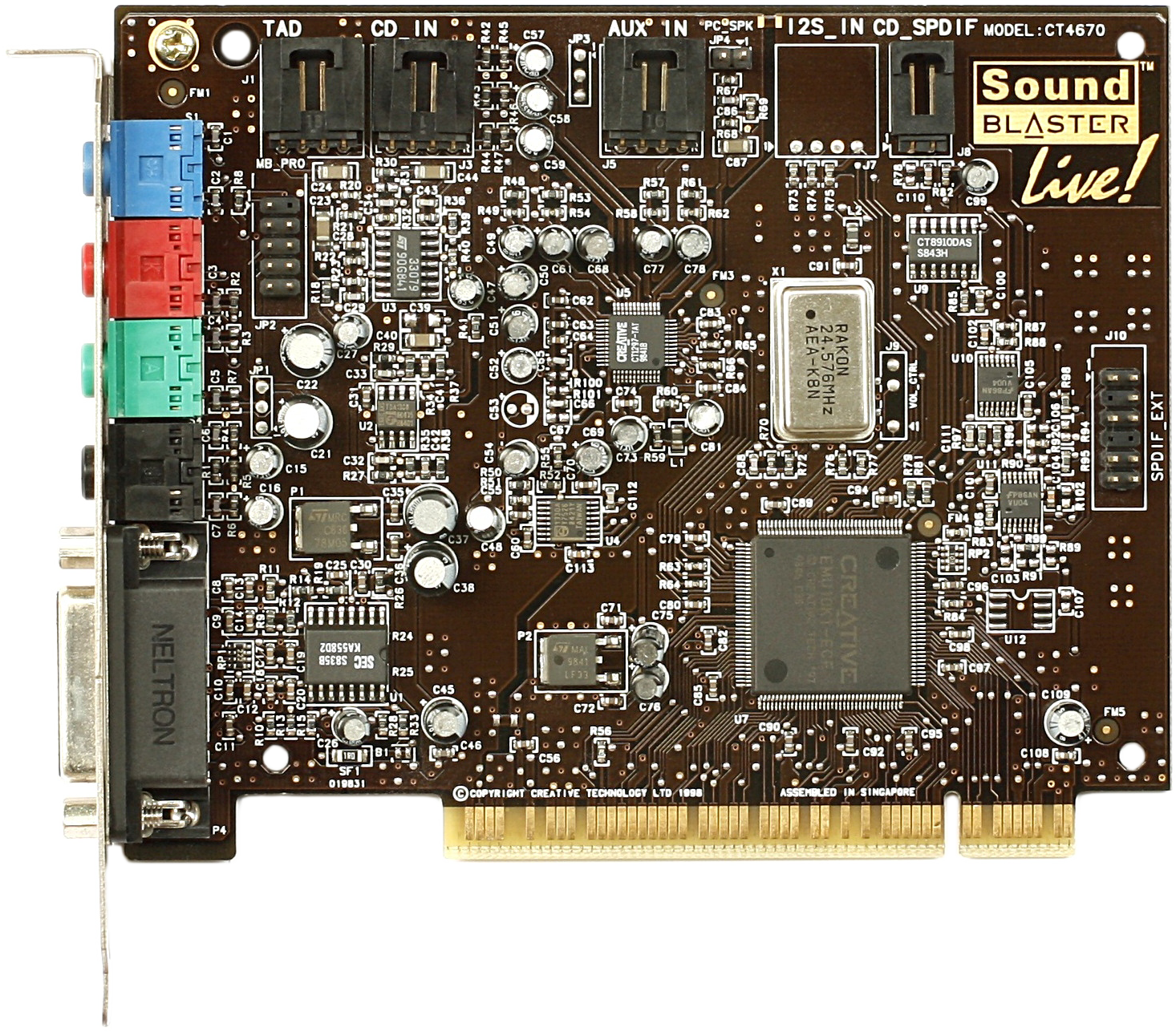
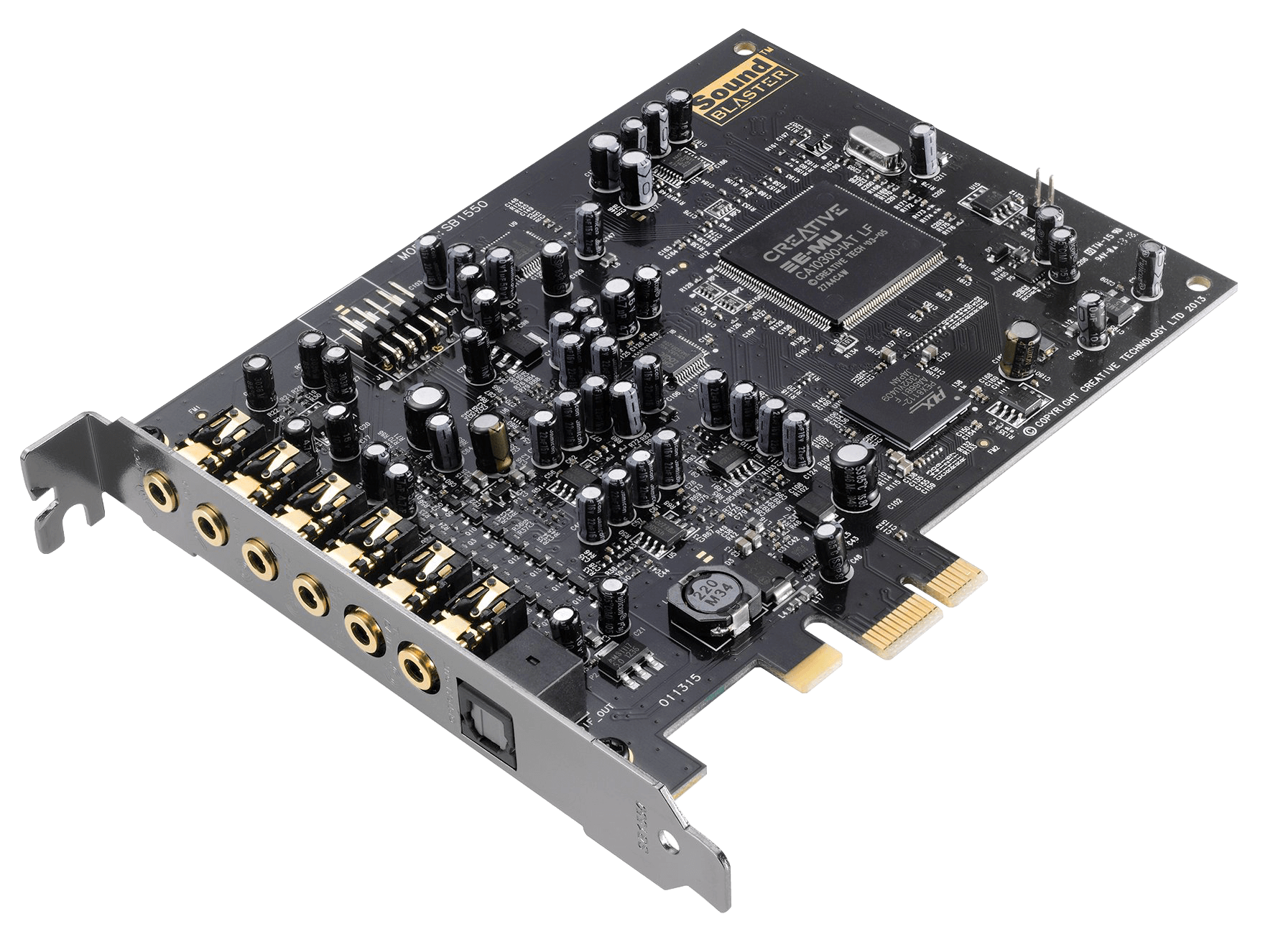
  • Processes audio signals
  • Enables sound input/output

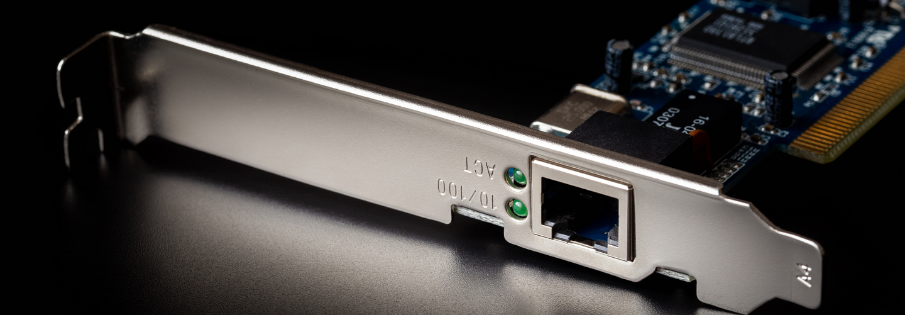
🌐 8. Network Interface Card (NIC)
Image
Image
Image
Image
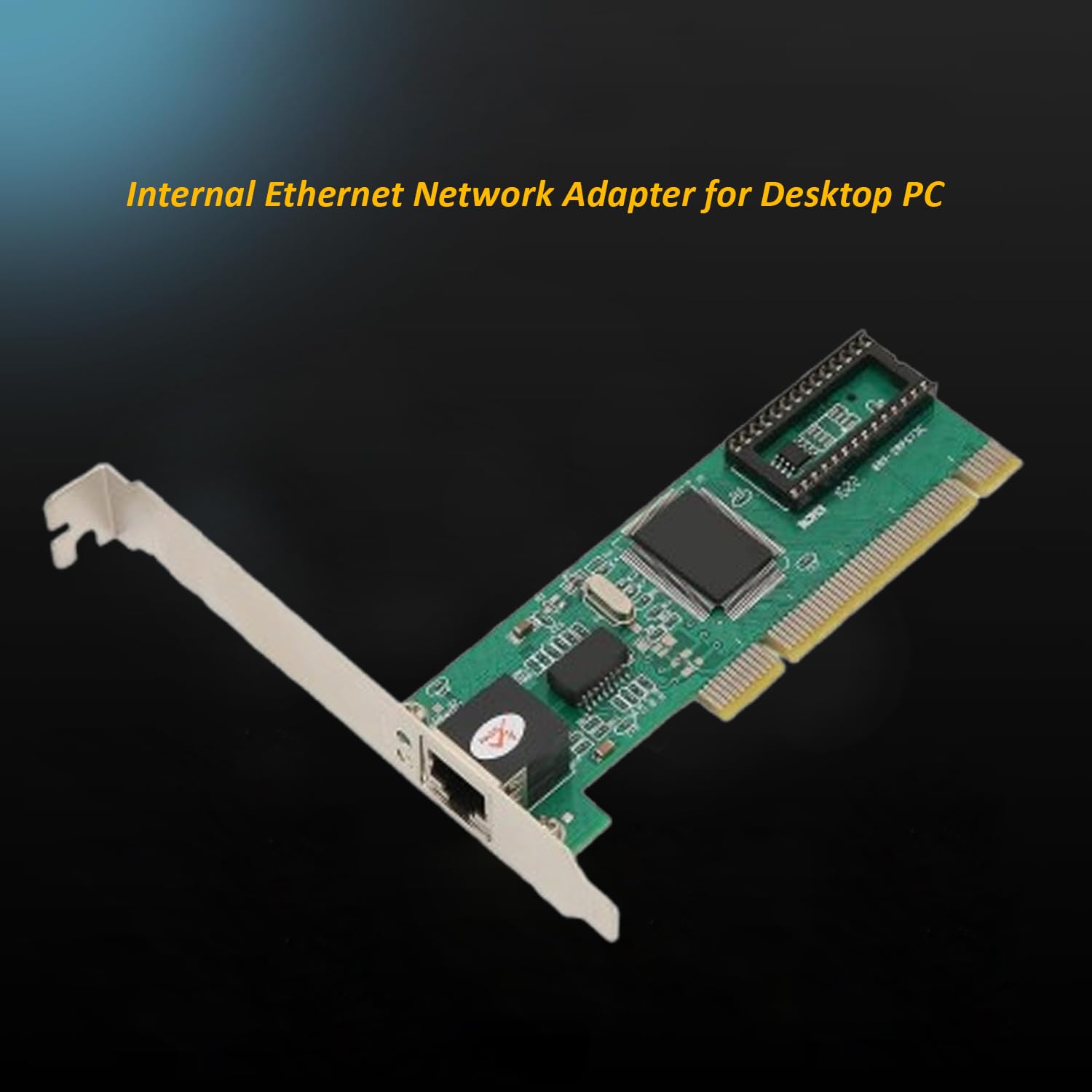
  • Connects computer to networks
  • Supports wired and wireless communication

⌨️ Input Devices

Image
Image
Image
Image

Examples:

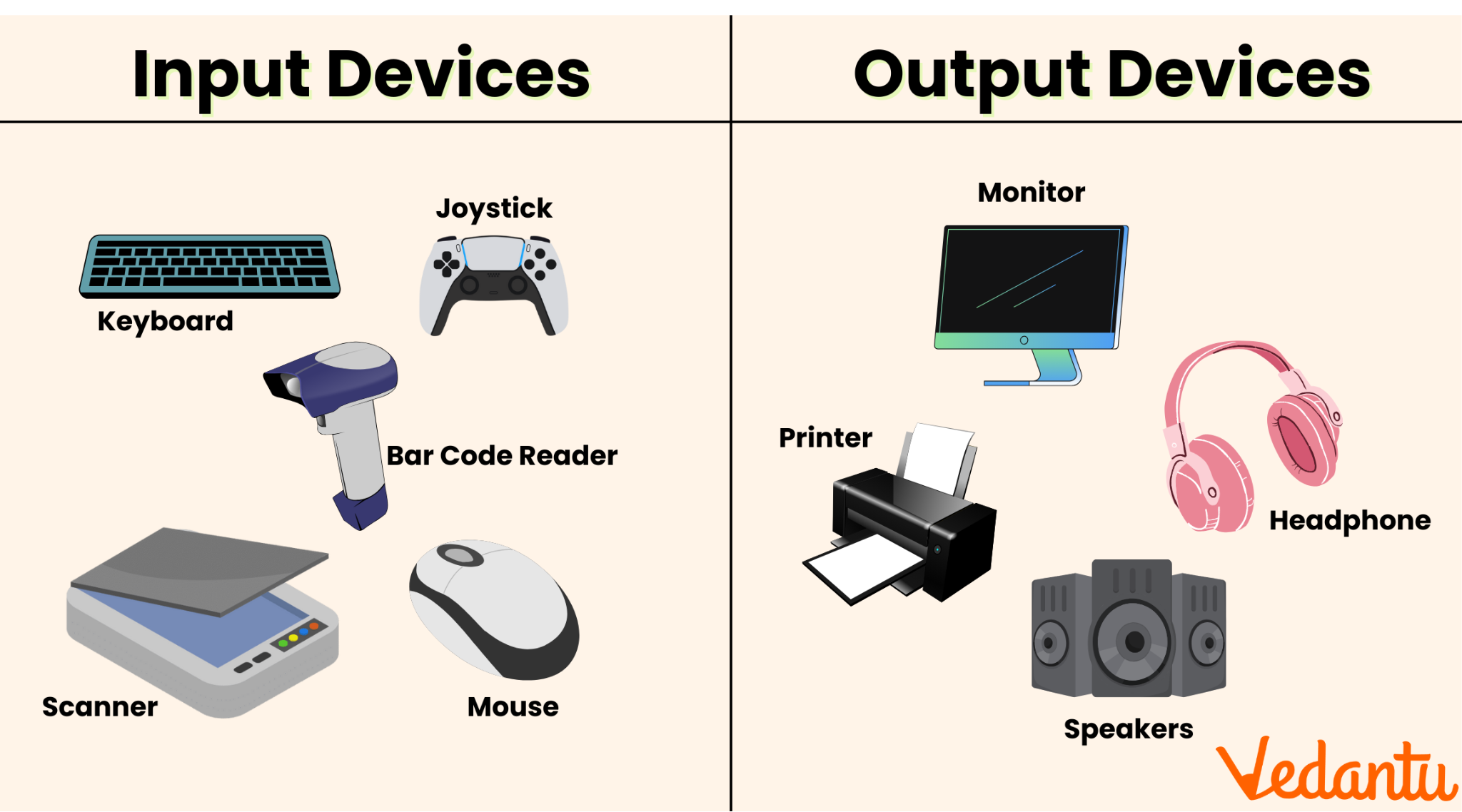
  • Keyboard
  • Mouse
  • Scanner
  • Microphone

🖥️ Output Devices

Image
Image
Image
Image

Examples:

  • Monitor
  • Printer
  • Speakers

🔌 Ports and Connectivity

Image
Image
Image
Image

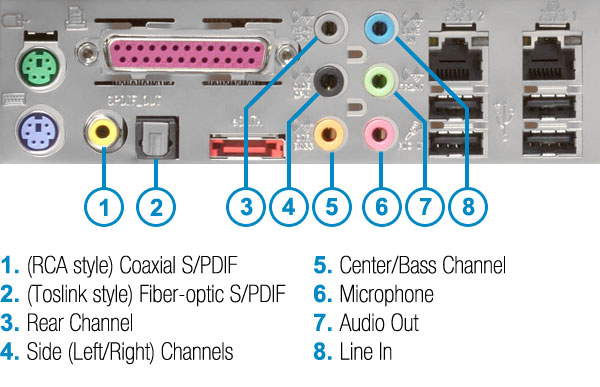
Common ports:

  • USB
  • HDMI
  • Ethernet
  • Audio jack

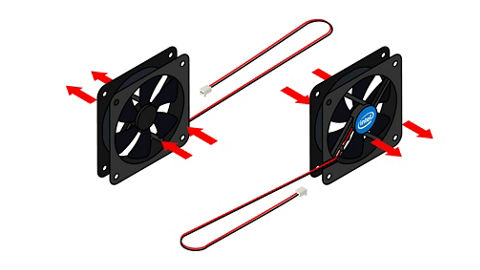
🧠 Cooling Systems

Image
Image
Image
Image
  • Prevent overheating
  • Types:
    • Air cooling
    • Liquid cooling

🧩 Expansion Cards

  • Graphics cards
  • Sound cards
  • Network cards

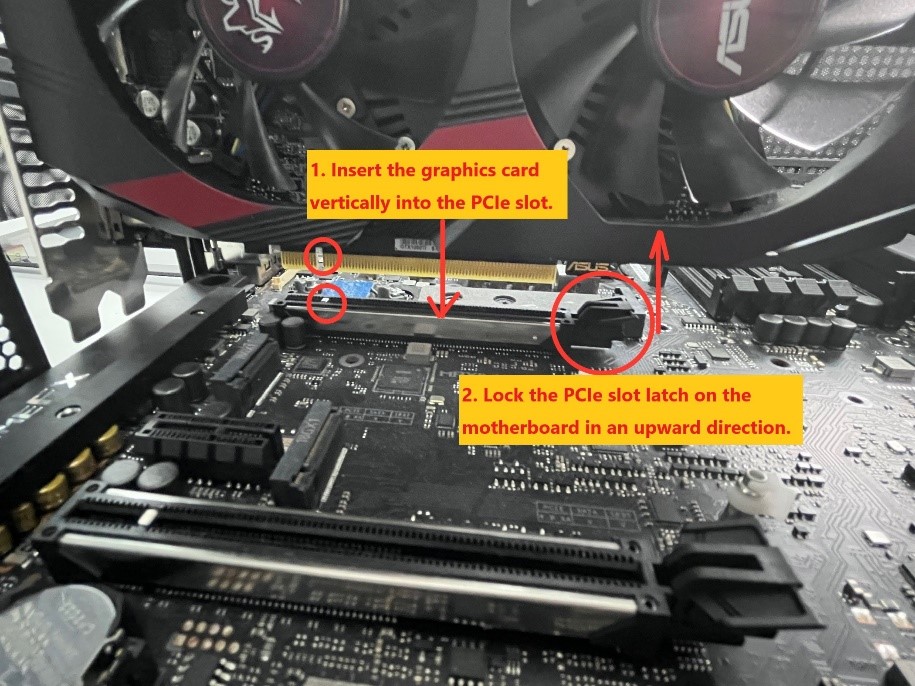
Installed via PCI slots.


🔄 Hardware Interaction


🔁 Data Flow

  1. Input →
  2. Processing (CPU) →
  3. Output

🔗 Bus System

  • Data bus
  • Address bus
  • Control bus

⚙️ Hardware Categories


🧱 Internal Hardware

  • CPU
  • RAM
  • Motherboard

🔌 External Hardware

  • Keyboard
  • Monitor
  • Printer

🧠 Firmware

  • Software embedded in hardware
  • Example: BIOS/UEFI

⚡ Performance Factors

  • CPU speed
  • RAM size
  • Storage type
  • GPU capability

🔐 Hardware Security

  • TPM chips
  • Biometric devices
  • Secure boot

🧩 Emerging Hardware Technologies

Image
Image
Image
Image
  • Quantum computing hardware
  • AI accelerators (NPUs)
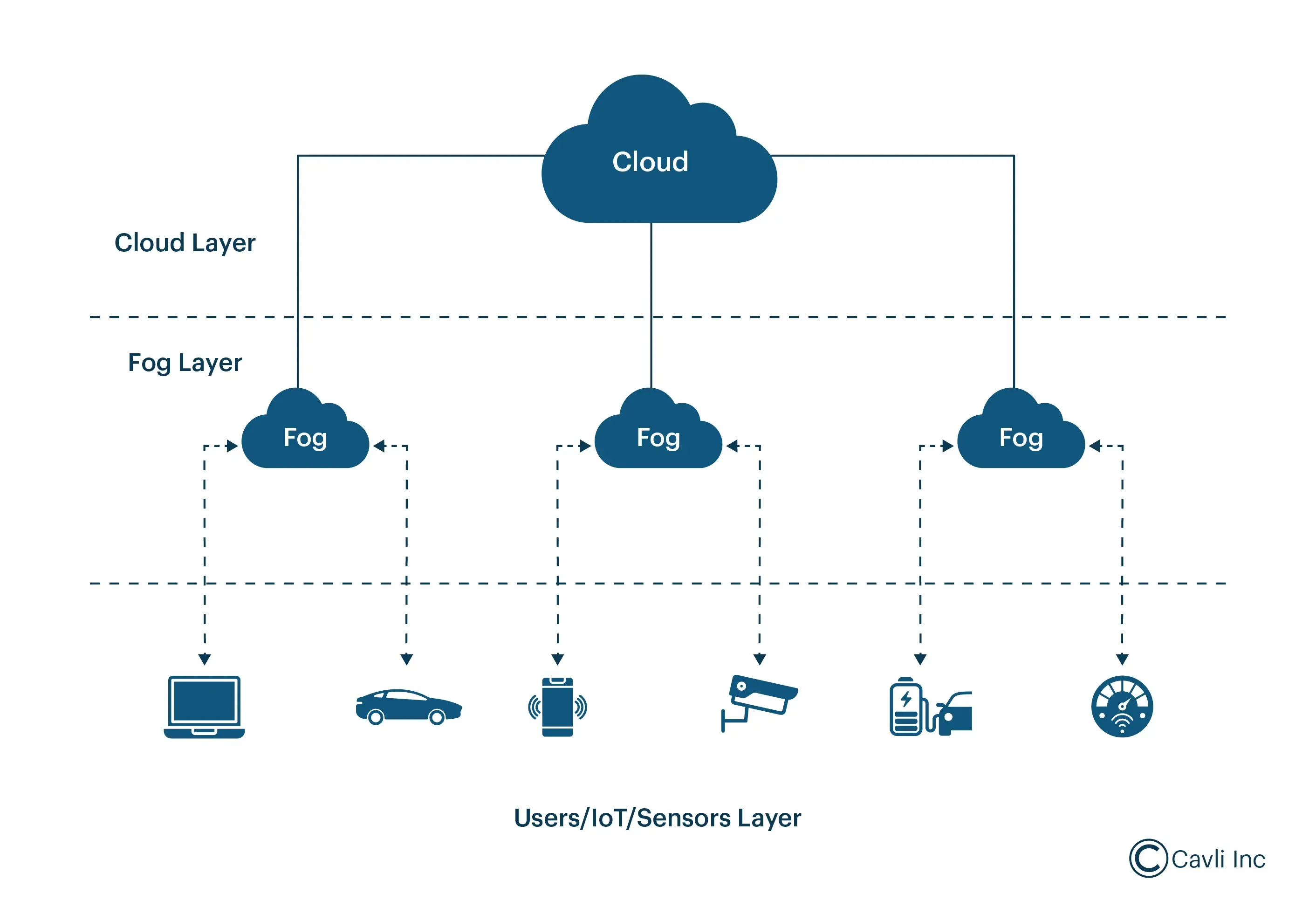
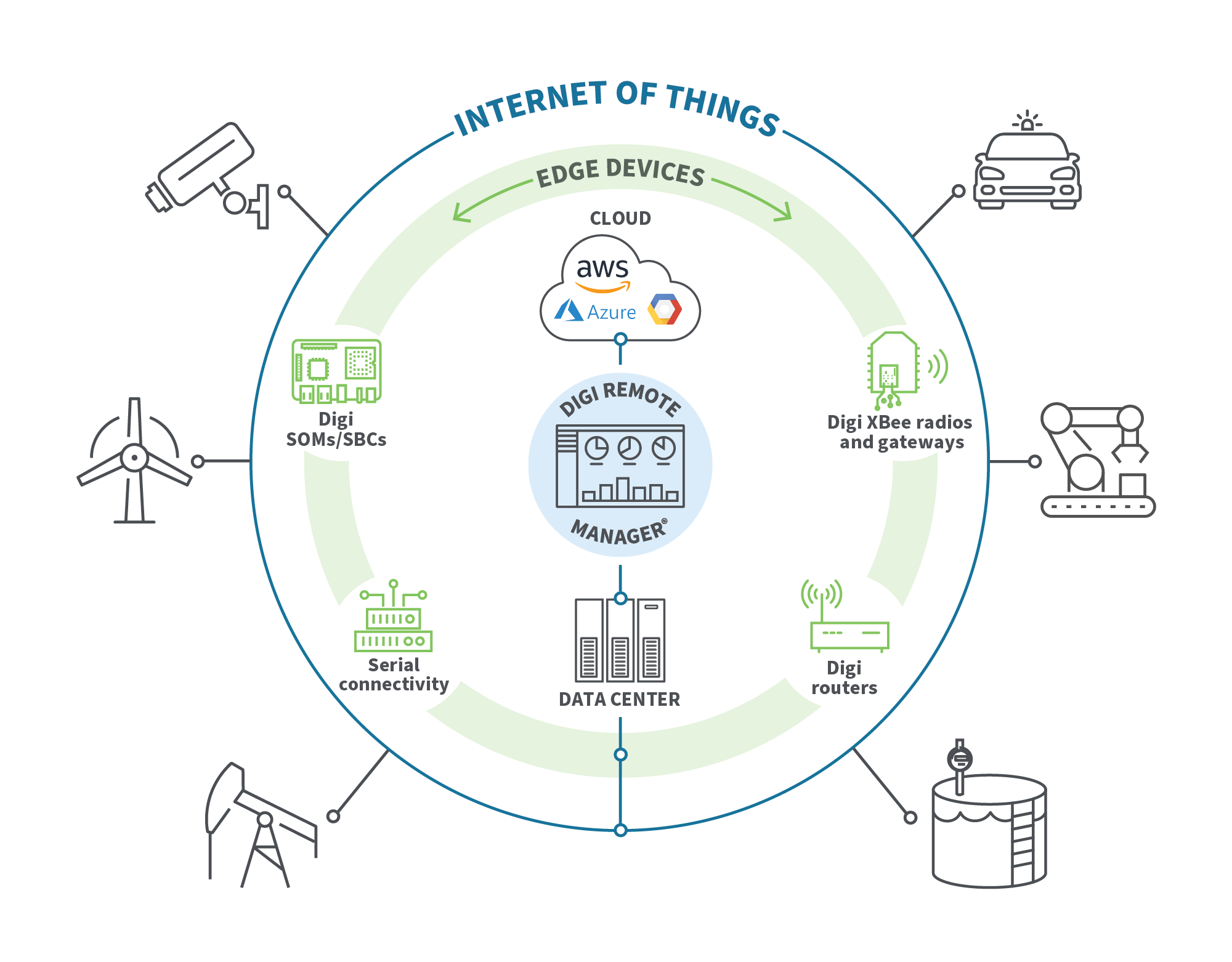
  • Edge devices
  • Wearables

⚡ Advantages of Computer Hardware

  • High-speed processing
  • Reliability
  • Scalability
  • Automation

⚠️ Limitations

  • Cost
  • Power consumption
  • Heat generation
  • Obsolescence

🧠 Conclusion

Computer hardware forms the physical backbone of computing systems. Understanding hardware basics helps in:

  • Building computers
  • Troubleshooting issues
  • Optimizing performance
  • Learning advanced computing concepts

Hardware continues to evolve rapidly, enabling powerful technologies like AI, cloud computing, and quantum systems.


🏷️ Tags

🖥️ Input and Output Devices – Complete Detailed Guide


🔰 Introduction to Input and Output Devices

Image
Image
Image

Input and Output (I/O) devices are essential components of any computer system. They serve as the communication bridge between humans and machines, allowing users to provide data (input) and receive processed results (output).

  • Input Devices → Send data into the computer
  • Output Devices → Receive data from the computer

Without I/O devices, a computer would be an isolated machine incapable of interaction.


🧠 Understanding the I/O System

The I/O system consists of:

  • Physical devices (keyboard, monitor, etc.)
  • Controllers and interfaces
  • Software drivers
  • Communication buses

Key Functions:

  • Data acquisition
  • Data presentation
  • Control signals
  • Feedback mechanisms

⌨️ INPUT DEVICES


📌 What Are Input Devices?

Image
Image
Image
Image

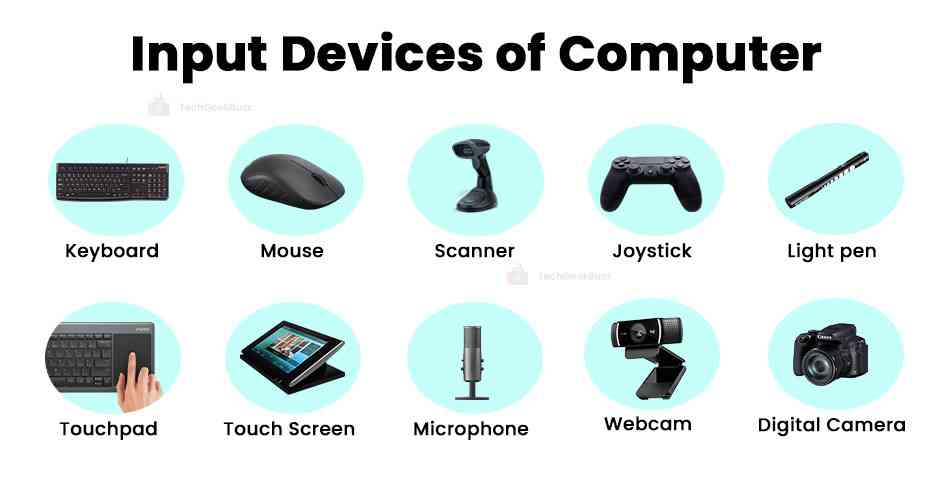
Input devices allow users to enter data, commands, and instructions into a computer system.

Characteristics:

  • Convert human actions into machine-readable signals
  • Provide control and interaction
  • Can be manual or automatic

🔤 Types of Input Devices


1. Keyboard

Image
Image
Image
Image

The keyboard is the most common input device.

Features:

  • QWERTY layout
  • Function keys (F1–F12)
  • Numeric keypad
  • Special keys (Ctrl, Alt, Shift)

Types:

  • Mechanical keyboards
  • Membrane keyboards
  • Virtual keyboards

Working:

Each key press generates a scan code, which is interpreted by the computer.


🖱️ 2. Mouse

Image
Image
Image
Image

The mouse is a pointing device used to control the cursor.

Types:

  • Optical mouse
  • Laser mouse
  • Wireless mouse

Functions:

  • Clicking
  • Dragging
  • Scrolling

📱 3. Touchscreen

Image
Image
Image
Image

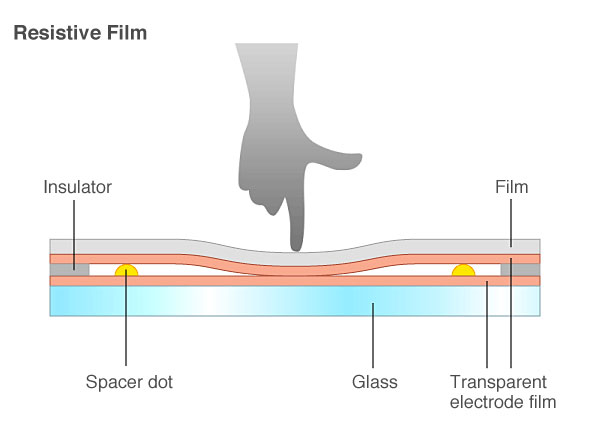
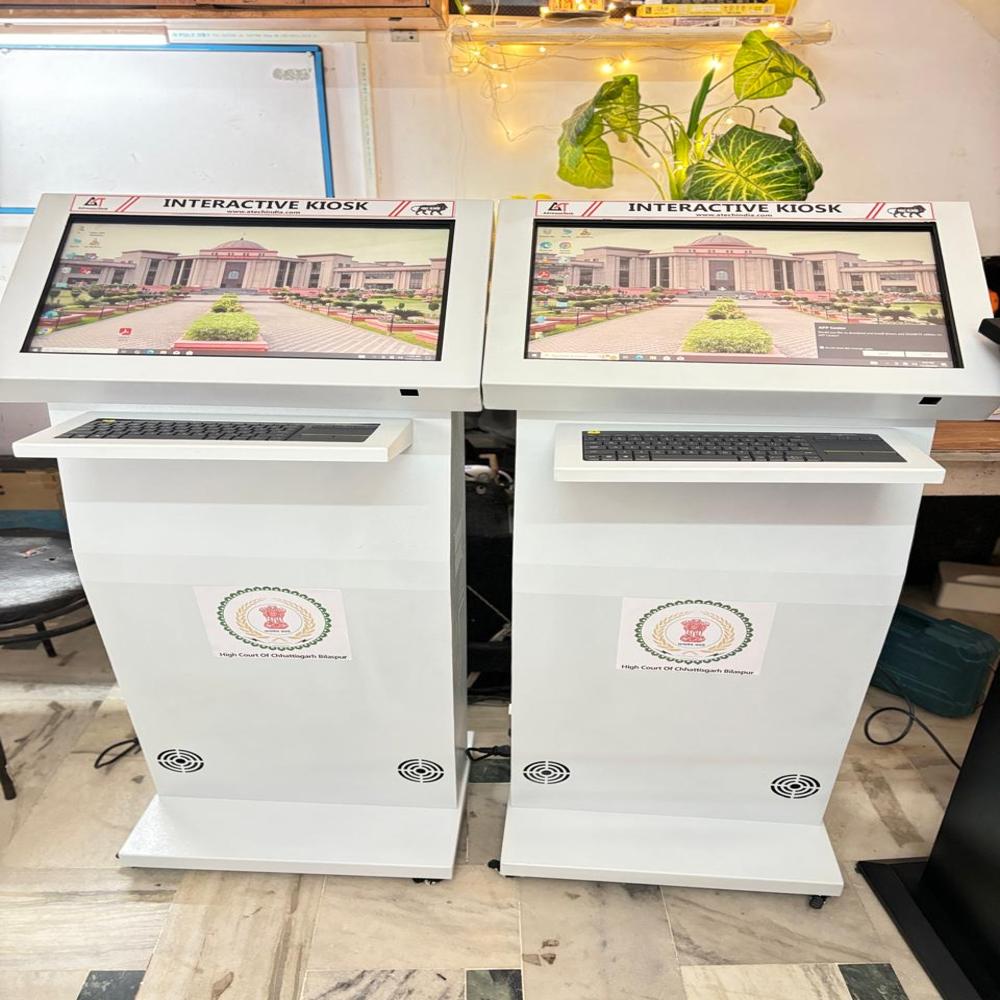
Touchscreens allow direct interaction using fingers.

Types:

  • Resistive
  • Capacitive
  • Infrared

Uses:

  • Smartphones
  • ATMs
  • Interactive kiosks

🎤 4. Microphone

Image
Image
Image
Image

Used to input audio signals.

Applications:

  • Voice commands
  • Recording
  • Communication

📷 5. Scanner

Image
Image
Image
Image

Converts physical documents into digital format.

Types:

  • Flatbed scanner
  • Handheld scanner
  • Barcode scanner

Technology:

Uses optical sensors to capture images.


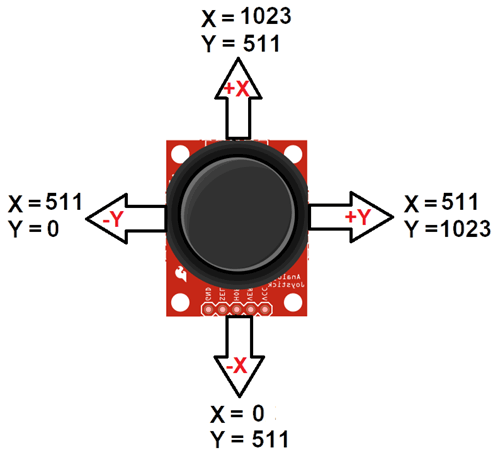
🎮 6. Joystick

Image
Image
Image
Image

Used mainly for gaming and simulations.


📸 7. Webcam

Image
Image
Image
Image

Captures images and video.


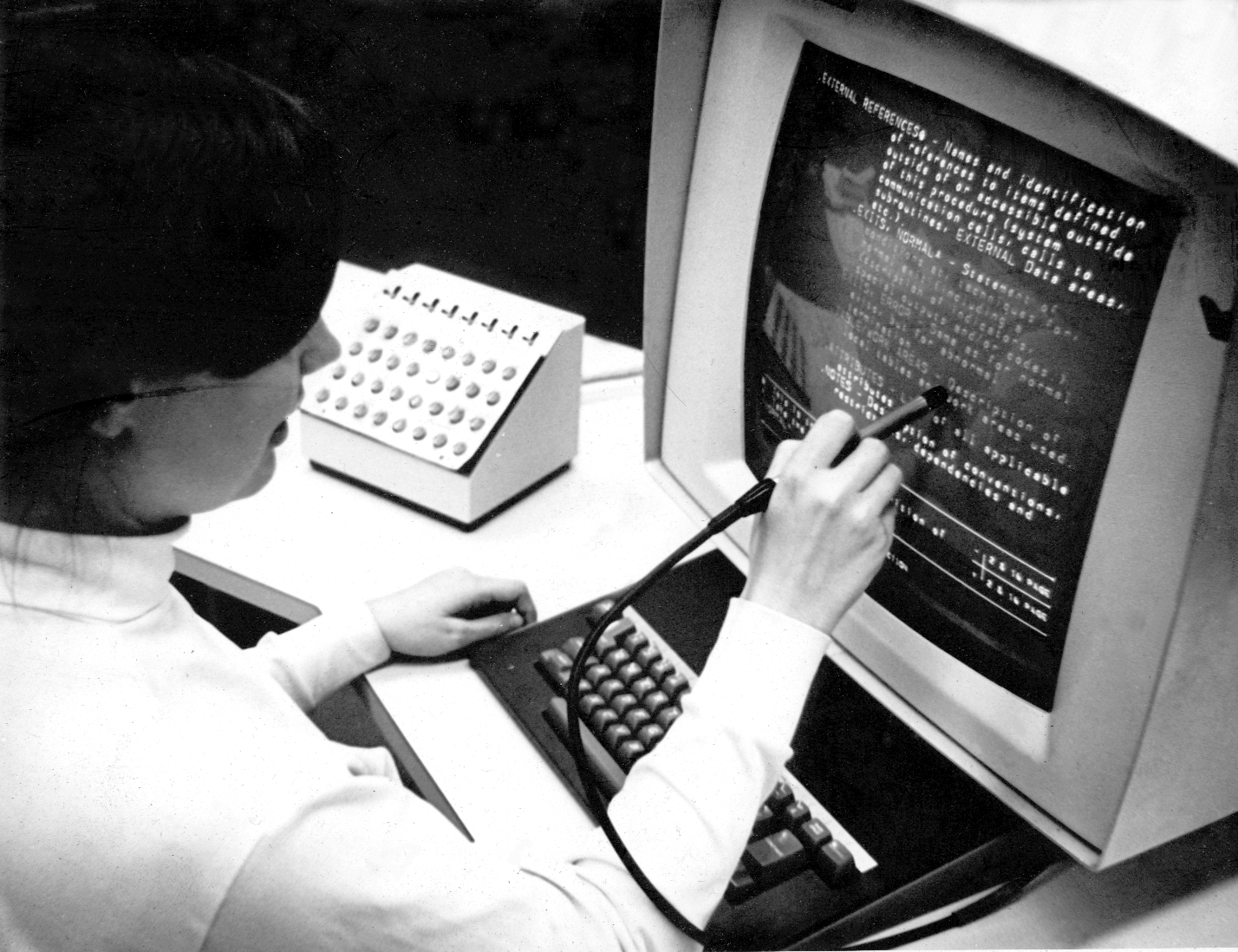
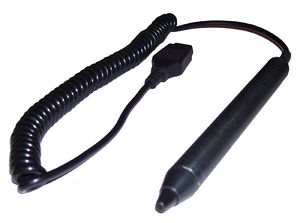
✍️ 8. Light Pen

Image
Image
Image
Image

Used for drawing directly on screens (older tech).


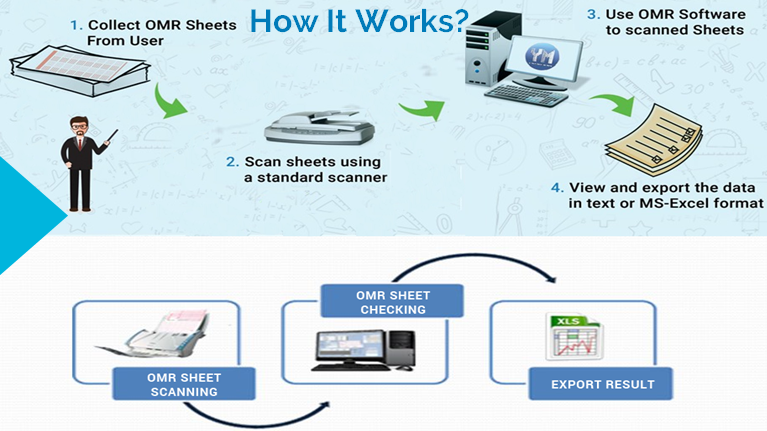
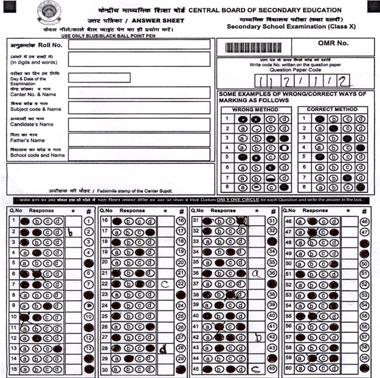
🧾 9. Optical Mark Reader (OMR)

Image
Image
Image
Image

Reads marked answers (e.g., exams).


🔤 10. Optical Character Reader (OCR)

Converts printed text into editable digital text.


🧬 11. Biometric Devices

Image
Image
Image
Image

Used for security and identification.

Types:

  • Fingerprint scanner
  • Iris scanner
  • Face recognition

🌐 Advanced Input Devices

  • Motion sensors
  • Gesture recognition
  • VR controllers
  • Eye-tracking devices

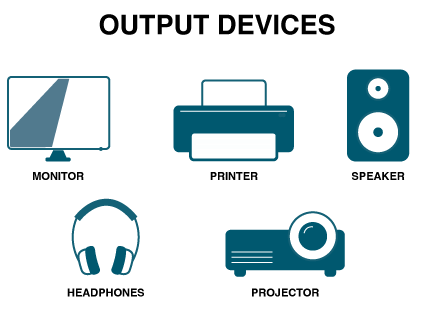
🖥️ OUTPUT DEVICES


📌 What Are Output Devices?

Image
Image
Image
Image

Output devices present processed data to users.

Characteristics:

  • Convert digital signals into human-readable form
  • Provide visual, audio, or physical output

📺 Types of Output Devices


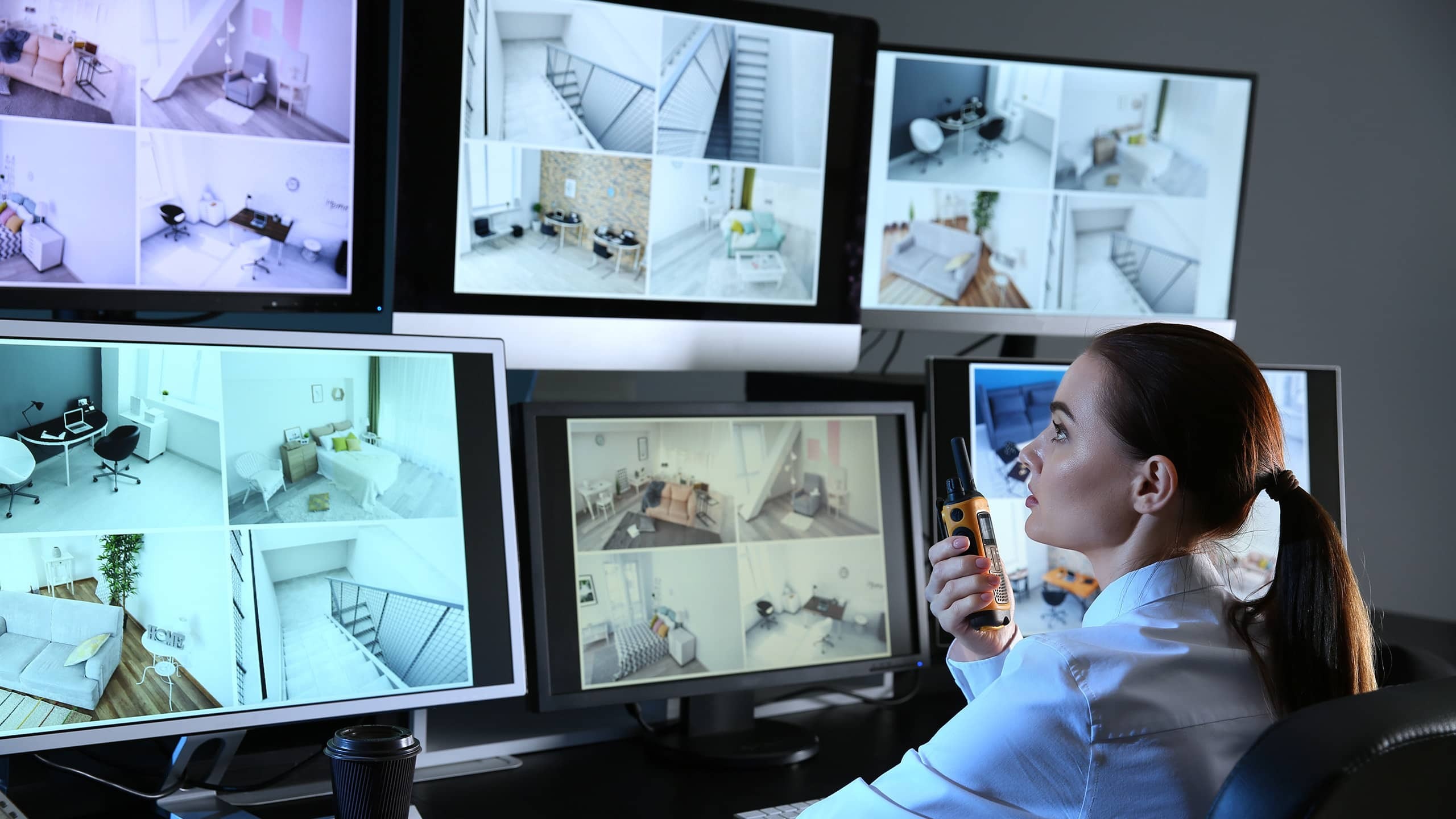
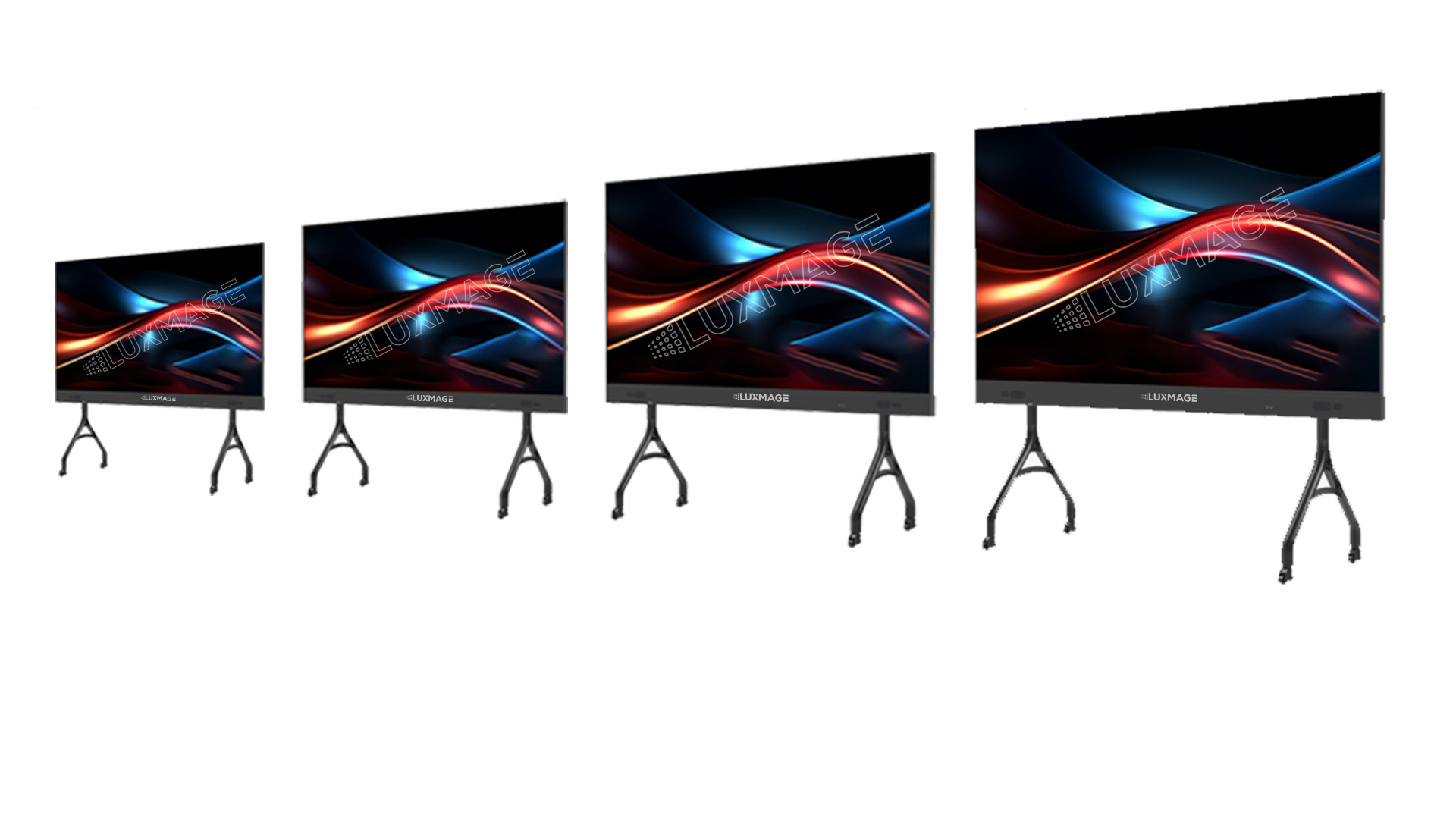
🖥️ 1. Monitor

Image
Image
Image
Image

Displays visual output.

Types:

  • CRT (old)
  • LCD
  • LED
  • OLED

Features:

  • Resolution
  • Refresh rate
  • Screen size

🖨️ 2. Printer

Image
Image
Image
Image

Produces hard copies.

Types:

  • Inkjet
  • Laser
  • Dot matrix

🔊 3. Speakers

Image
Image
Image
Image

Produce sound output.


🎧 4. Headphones

Provide personal audio output.


📽️ 5. Projector

Image
Image
Image

Displays visuals on large screens.


🧾 6. Plotter

Image
Image
Image
Image

Used for large technical drawings.


📟 7. Braille Display

Image
Image
Image
Image

Helps visually impaired users.


🌐 Advanced Output Devices

  • VR headsets
  • AR displays
  • Holographic displays

🔄 Input vs Output Devices

FeatureInput DevicesOutput Devices
FunctionEnter dataDisplay results
DirectionUser → ComputerComputer → User
ExamplesKeyboard, MouseMonitor, Printer

⚙️ Input/Output Interfaces


🔌 Ports and Connections

Image
Image
Image
Image

Common interfaces:

  • USB
  • HDMI
  • VGA
  • Bluetooth
  • Wi-Fi

🔄 I/O Data Transfer Methods

  1. Programmed I/O
  2. Interrupt-driven I/O
  3. Direct Memory Access (DMA)

🧠 Drivers and Software

  • Device drivers enable communication
  • OS manages I/O operations
  • Examples: printer drivers, audio drivers

⚡ Performance Factors

  • Speed
  • Accuracy
  • Latency
  • Bandwidth

🔐 Security in I/O Devices

  • Biometric authentication
  • Encryption
  • Secure input methods

🧩 Emerging Trends

Image
Image
Image
Image
  • AI-based interfaces
  • Voice assistants
  • Brain-computer interfaces
  • Smart wearables

📊 Advantages of I/O Devices

  • User interaction
  • Automation
  • Accessibility
  • Efficiency

⚠️ Limitations

  • Cost
  • Maintenance
  • Compatibility issues
  • Security risks

🧠 Conclusion

Input and Output devices are fundamental to computing systems. They enable:

  • Human-computer interaction
  • Data processing and visualization
  • Automation and control

As technology evolves, I/O devices are becoming more intelligent, immersive, and intuitive, shaping the future of human-computer interaction.


🏷️ Tags